|
When working with shapefile preview, you can use basic operations with maps, like panning or zooming.

Check total area
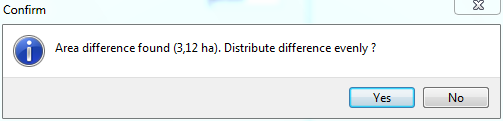
After modifications made to area of individual stratas, click Check total area button. The procedure will check, whether sum of all strata areas equals to area of all plot and if not, it offers you to split the difference between stratas relative to their area.
Save areas to lookup file
Click this button to append Area_ha field to lookup list, which contain area of individual strata.
|
- Select a stratifier (i.e. attribute od layer Plots,
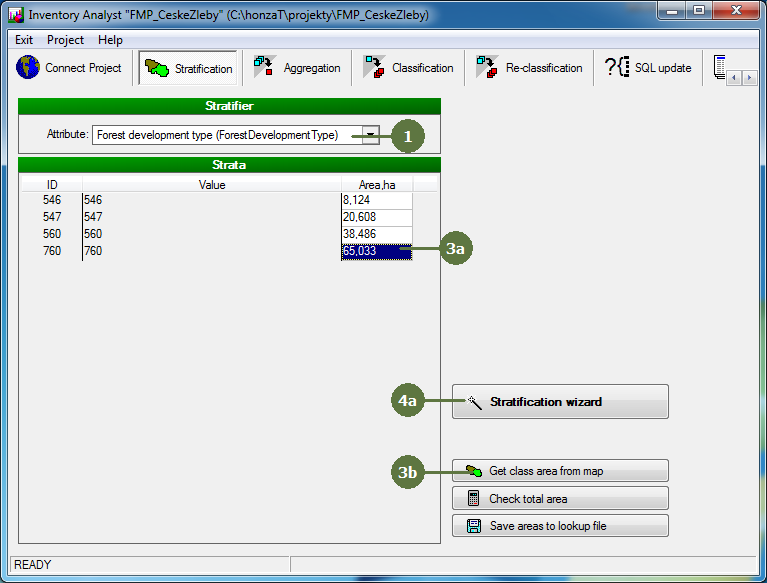
There are three ways of defining the area of individual strata
- Setting the area manually
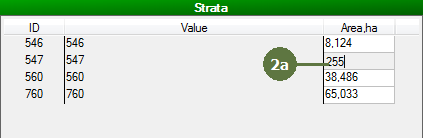
- Double-click respective field in Area column and fill in value manually
- Getting class area from map
- Select the field to be updated
- Click Get class area from map button
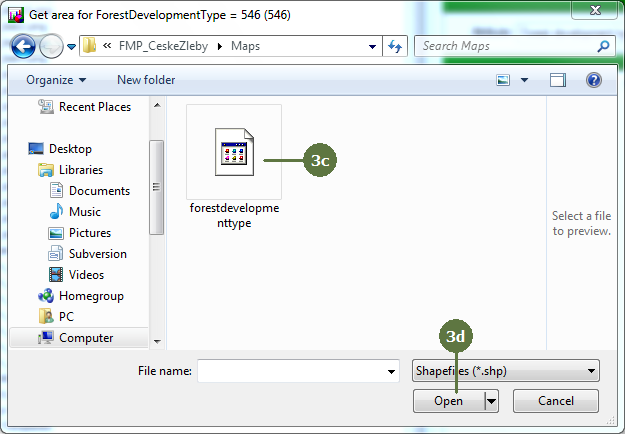
- Browse to and select the file (*.shp) which contains polygons of individual segments
- Click Open
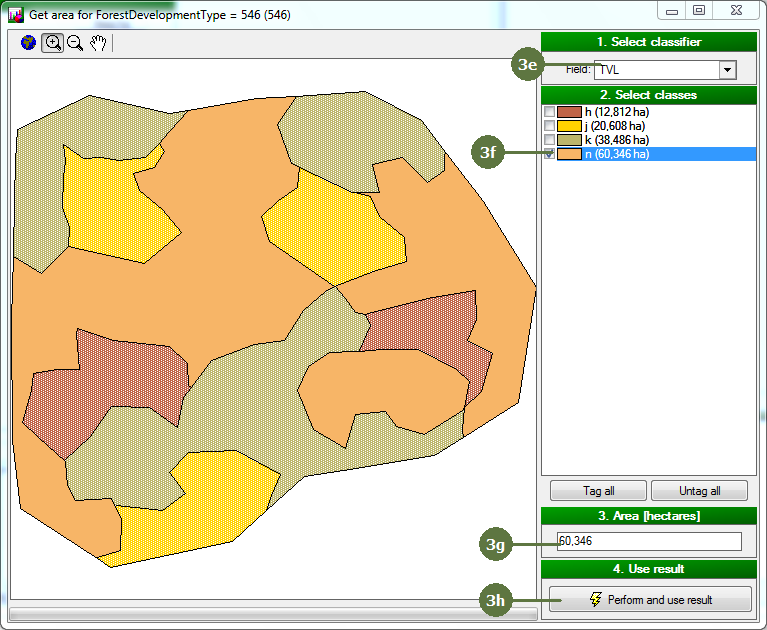
Get area window together with shapefile preview appears.
- Select a classifier (i.e., lookup list attribute, which can be used to classify whole shapefile into desired classes)
- Tag classes, which define the area of selected strata
- Preview of area (ha) becomes updated
- Click Perform and use result button
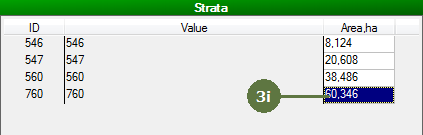
- Value of area for selected strata is updated
- Using stratification wizard
- Click Stratification wizard button
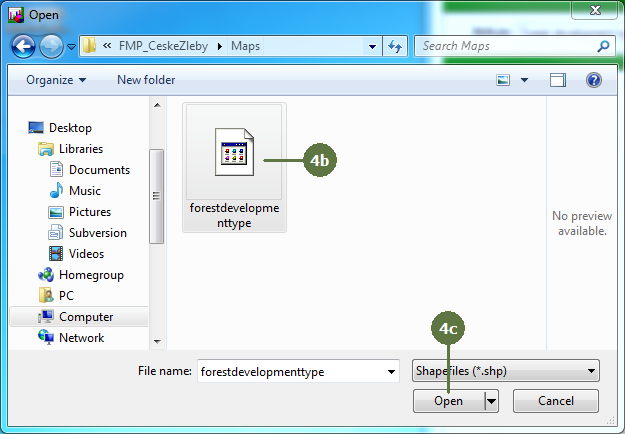
- Browse to and select the file (*.shp) which contains polygons of individual segments
- Click Open
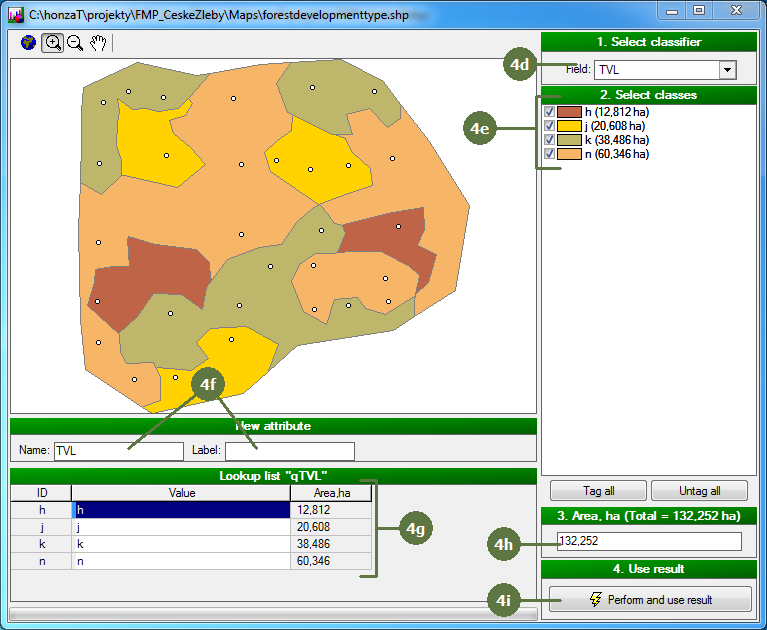
Classifier window with shapefile preview appears.
- Select a classifier (i.e., lookup list attribute, which can be used to classify whole shapefile into desired classes)
- Tag those classes to define new stratas
- Fill in the name and the label of new lookup list attribute
- Preview of new lookup list appears together with total area of individual strata
- Total area of all stratas becomes updated with each change
- Click Perform and use result button
|