|
Create polygonal mask
This function hides a layers, polygons etc. and shows only polygon(s) which you want.
|
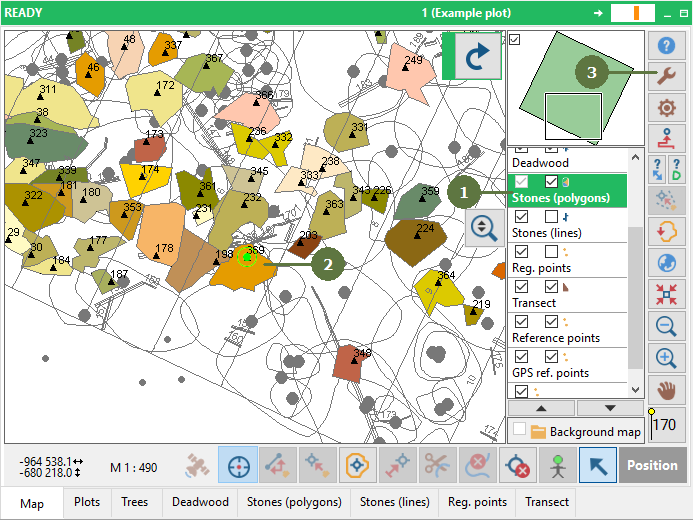
- Double click a polygon layer to make it active
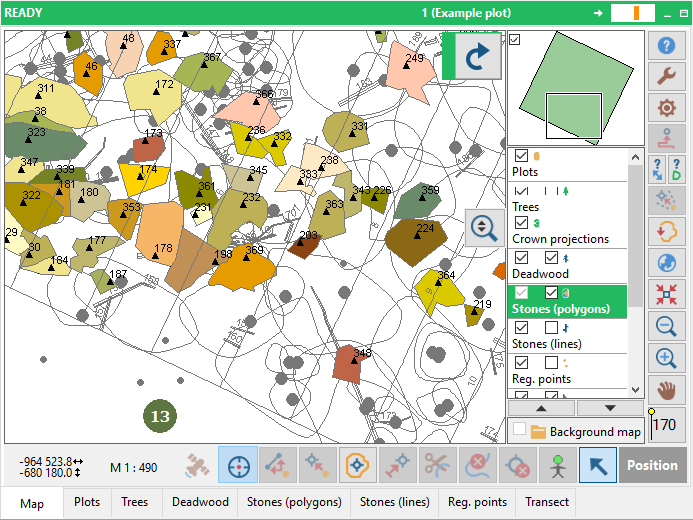
- Select a polygon(s) in the map (a green circle indicates the selected polygon(s))
- Click the Tools button
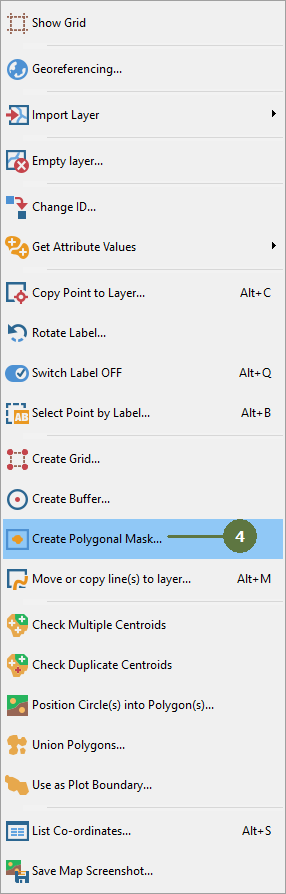
- Select the Create polygonal mask menu item
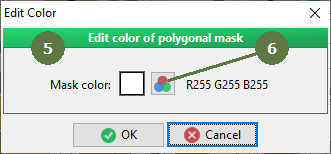
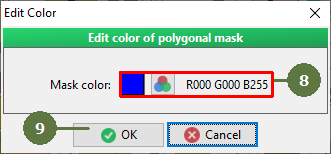
- A window appears with an edit color of polygonal mask
- You can change the mask color. Click on the button with 3 circles.
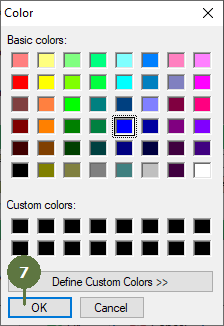
- A window appears with colors. Choose a color and click OK.
- You can see your color in the little square with RGB representation.
- Click OK.
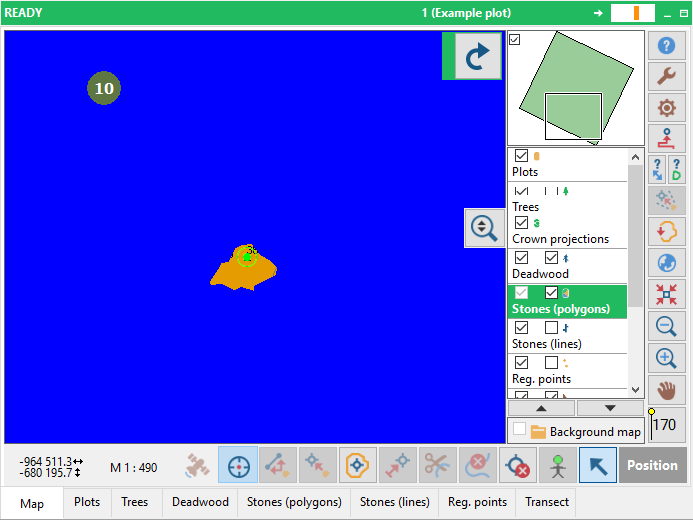
- Check result. All layers, polygons etc. are covered by mask color (blue color), excepts the selected polygon(s)
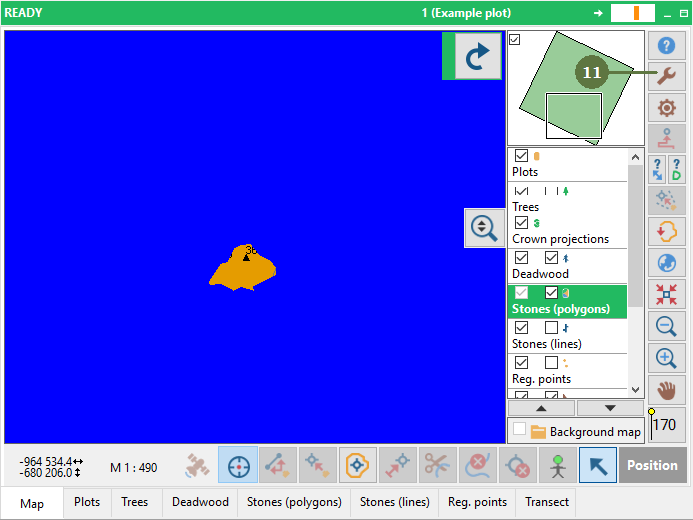
- If you do not want the polygonal mask anymore then click the Tools button
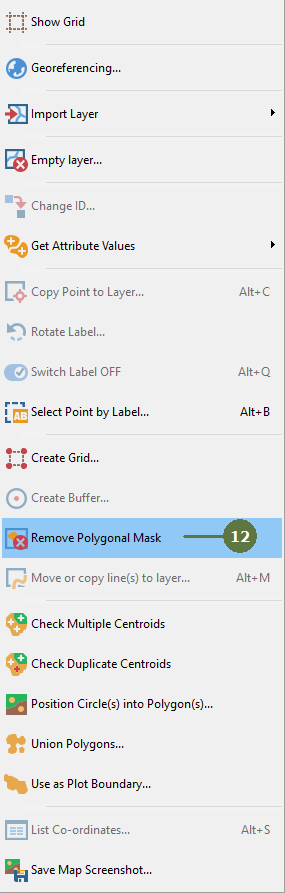
- Select the Remove polygonal mask menu item
- Result. The polygonal mask has been removed
|