3.10 Importing non-geographic data
|
Only non-geographic data may be imported through the data import wizard. The source table must contain ID fields identifying relations to all parent layers. In example below we will import the data of tree vitality collected in spruce forest on paper form. The Vitality table is related to the Trees layer. There are IDs specifying Trees (TREES) and Vitality ID (VITALITY ID) on a particular Plot (PLOT).
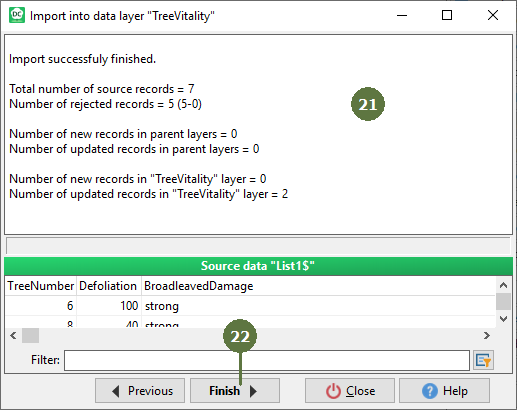
Importing to all plots If you untag the Limit to ID check box, data will be imported to all plots in the project. The data of plots which are not found in the project will be rejected. By tagging the check box you import data only to the current plot. Importing data Field-Map Data Collector can import data from MS Access, MS Excel, Firebird or text format. Data from clipboard is supported too. Field-map supports new Excel / Access 2007-2010 formats as well. Result of data import The Log file at the end of import procedure tells you how many records have been updated, rejected or newly added. In this example two records were rejected because we only had plots 1 and 2 in the project. Plot with ID = 3 does not exist in the project (compare with data source table). Assign fields Links fields defined in Field-Map with respective fields in imported table. |
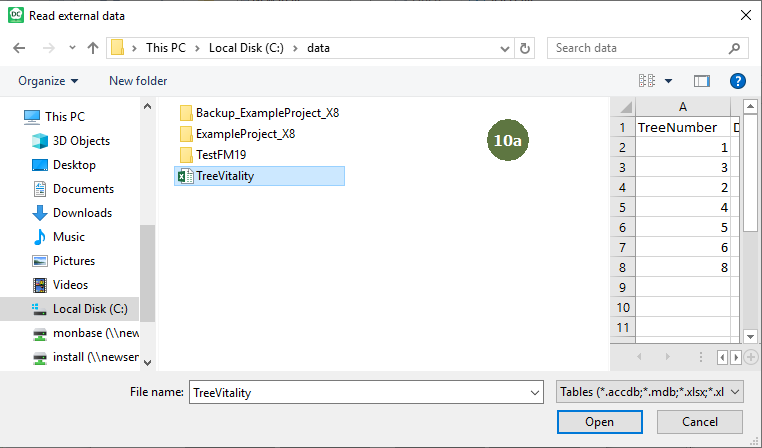
Tree vitality layer is empty of data at the beginning 9a. Choose the Open source data radio button or 9b. Choose the Data from clipboard radio button 10a. Browse for the source data file or 10b. Click the Paste data from clipboard now
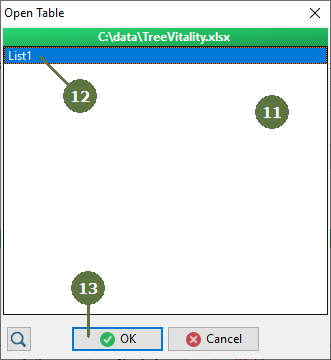
11. A window appears 12. Choose the list which you want 13. Click OK
14. A preview of data source table appears
15. Click the Next button
16. Assign ID fields 17. Click Next
18. Assign the fields which you want to import 19. Click the Add button (black arrow) Repeat steps 17 and 18 to select all necessary fields 20. Click Finish
21. A log file appears 22. Click Finish to complete the importing procedure
23. Check imported data
|