|
Script editor in Field-Map Data Collector
Field-Map Data Collector has a very powerful script editor useful particularly for Field-Map developers. The editor runs in an independent window and you can immediately debug your OnChange, OnValidate and OnLayer scripts as well as Global events. The button “Script editor” is disabled by default. You can activate it in the System2.ini file stored in “C:\Users\Public\ FieldMap” (Win Vista and 7) or “C:\Documents and Settings\All Users\FieldMap” (Win XP). For modification of the System2.ini file use the software Notepad.
[Developer]
ScriptEditor=1
ShowNames=0
If “ScriptEditor=0”, the function is not available. If “ScriptEditor=1” ,the function is available.
If “ShowNames” is set to 0 (“ShowNames=0”), layer and attribute labels are displayed in Field-Map Data Collector.
If “ShowNames” is set to 1 (“ShowNames=1”), layer and attribute names are displayed in Field-Map Data Collector (for easier script developing).
For more information about scripting, see help FMScripting
|
- Switch to the Plots form
- Click the Script editor button
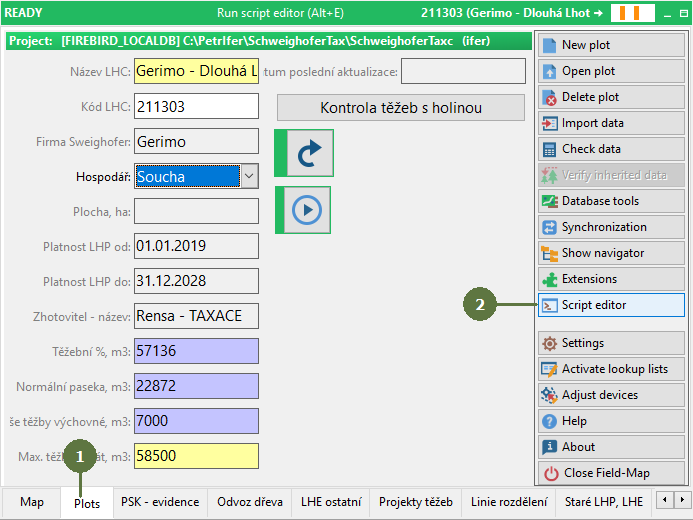
- The Script editor windows appears
- Click Close button to close Script editor

OnChange events

OnValidate events

OnLayer events
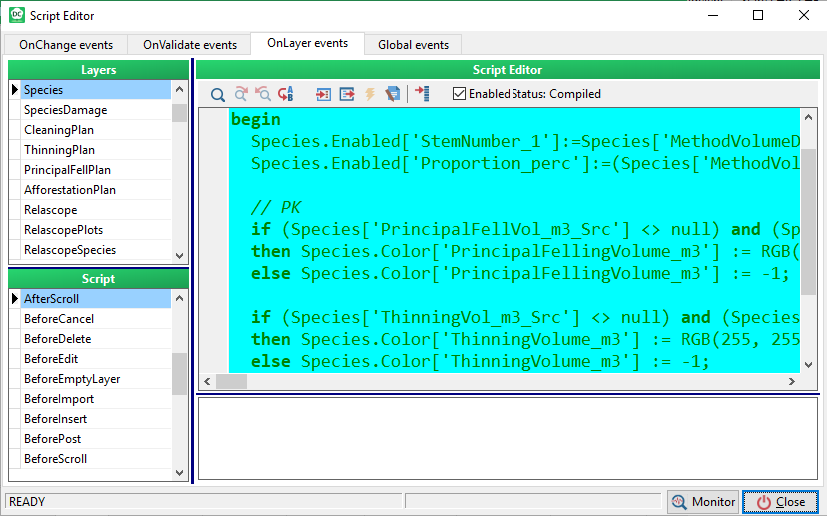
Global events

Script editor - detailed
- Choose a type of a script
- Searching text tools
- Replace text function
- Import a Field-Map script (*.fms) from Project/File/Repository
- Export a Field-Map script (*.fms) to File/Repository
- Compile a script function and its status info
- Insert name of attribute used in the project database from the list
- Enable or disable a script
- Filtering of only existing scripts

Note:
You can also run the script editor in Field-Map Data Collector also using keys Alt+E. More about scripting in FieldMap consult Field-Map Project Manager User Guide, chapter FieldMap Scripting.
|