|
Creating line intersects and dividing lines
PolyShape finds intersections of lines, creates points at the intersections and divides lines into segments with their starting and ending at the intersect points.
Mark and delete coalescent lines
PolyShape finds lines with identical parts and deletes duplicate lines from the line layer. Coalescent lines may be product of digitizing in some GIS software where each polygon has its own border line and consequently it creates coalescent lines between neighboring polygons.
Mark dangling lines
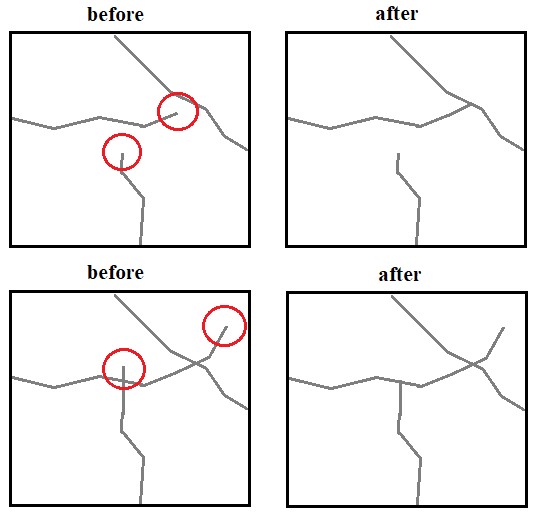
PolyShape finds dangling lines in the line layer and marks them. Dangling lines are automatically checked and repaired.
Save clean lines
When this function is enabled (tag the “Save clean lines after PolyShape routine” check box) in Settings, Field-Map asks whether to save clean lines or keep original lines. Clean lines are without dangles and coalescent lines. However you loose the shape of the source lines which may be undesirable.
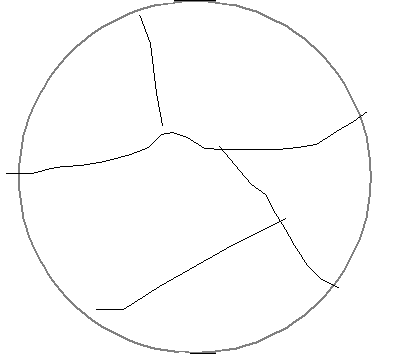
Lines measured

Clean lines
Additionally it is also possible to store information about the left and right polygon for each line.
|
- Create line intersects and divide lines
- Delete coalescent lines


- Mark dangling lines
- Delete / snap dangling lines
See at bottom of this page for more details
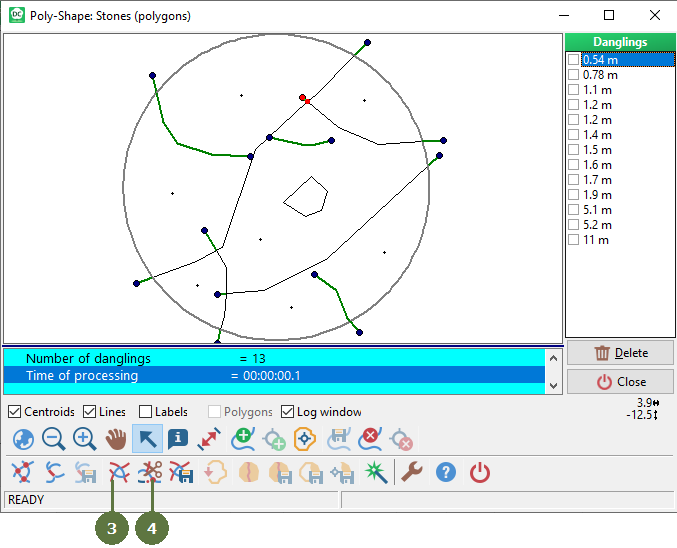
Note: Here are marked dangling lines
- Build polygons
- Close the Poly-Shape and use the result in Field-Map
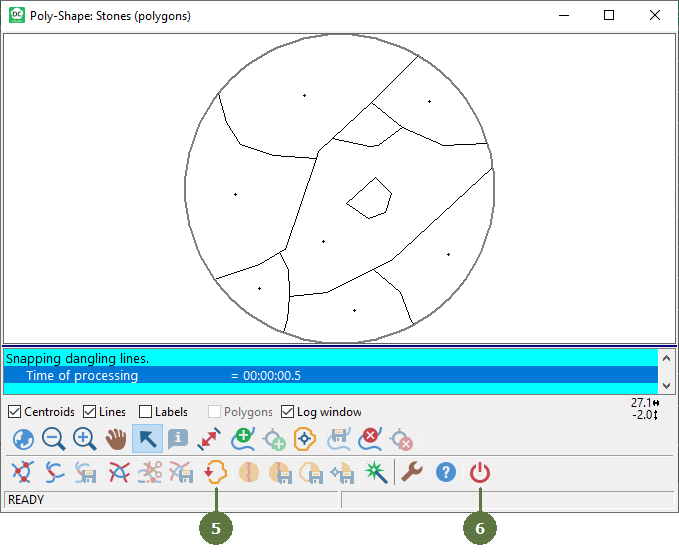

Result
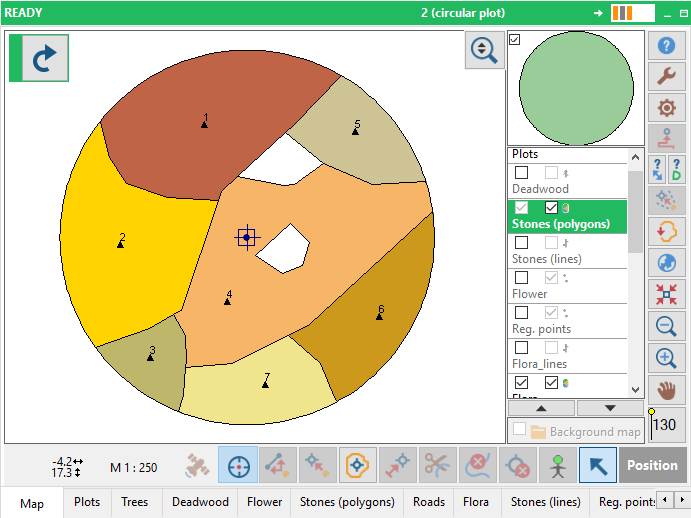
Note:
If there are multipolygons with adjacent parts (polygons with the same ID that are connected), it is possible to identify their dividing lines; these lines can be deleted or exported to another layer. If there is Save clean lines after Poly-Shape routine option selected in Settings, redundant centroids are removed when returning from Poly-Shape into Field-Map; just one centroid is selected randomly to be left and position of remained centroids of polygons from which duplicate centroids where removed is optimised.
Handling dangling (detailed)
Deleting vs. snapping dangling lines:
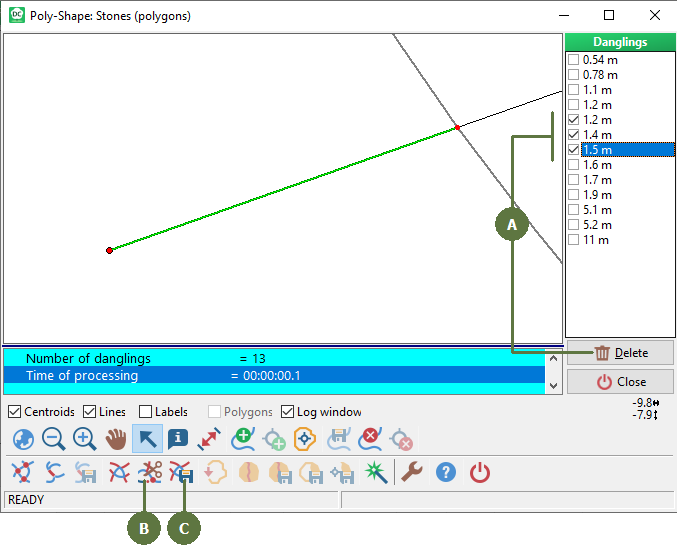
Deleting dangling lines:
Individually (A) by tagging the check box of a particular dangling line in the “Danglings” list and clicking the “Delete” button. Tip: Click the right mouse button for more detailed menu.
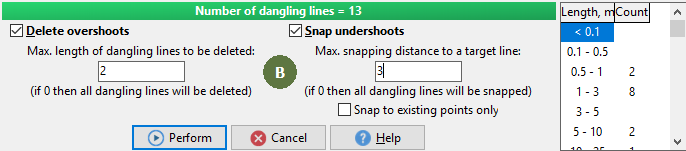
Automatically (B) by clicking “Delete/Snap dangling lines” button and entering parameters for automatic cleaning. Click “Perform” button
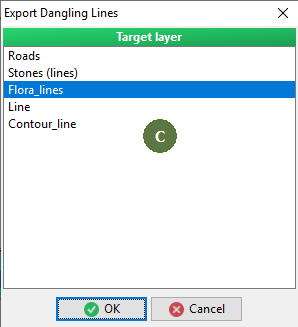
Saving dangling lines (C)
It is possible to save dangling lines to another layer by clicking “Export dangling lines to layer”. This is a way how to set aside e.g. rivers and roads, that do not represent border lines of polygons, disable closing polygons but should not be deleted. Select a line layer to export lines and click OK
Problematic lines
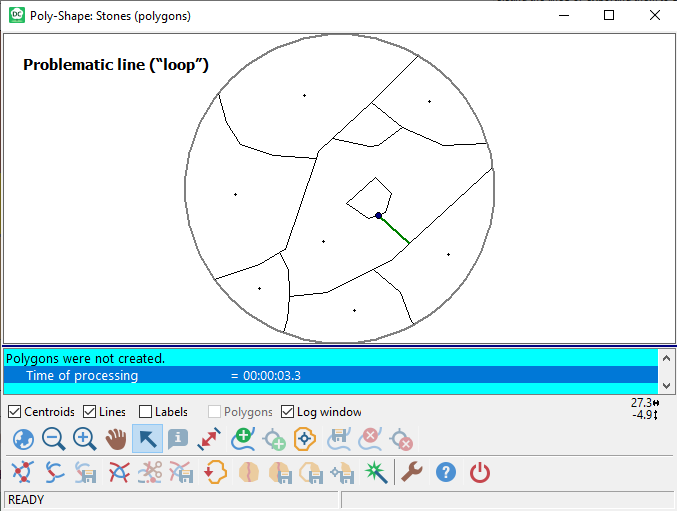
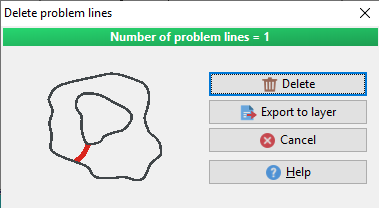
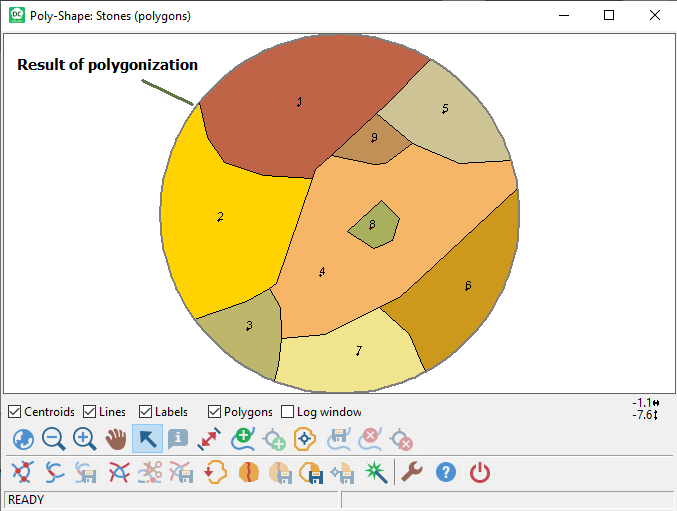
There can be problematic lines which are revealed during the building of polygons. Usually the problems are caused by “loop” lines, i.e. lines which connect two polygons but do not form a polygon by themselves. Those lines are marked during the last step of polygonization and the dialog window reporting a problem is displayed. The problem can be resolved either by deleting the lines or exporting them to selected line or polygonal layer. All problematic lines has to be resolved to continue the polygonization process.
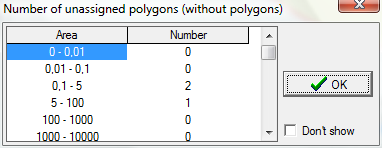
Unassigned polygons
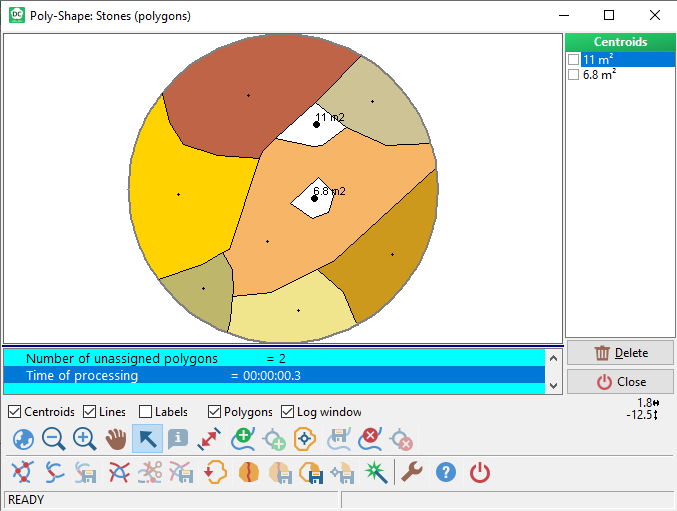
Each polygon must have an associated centroid. The polygons without centroids are not created and reported as "unassigned".
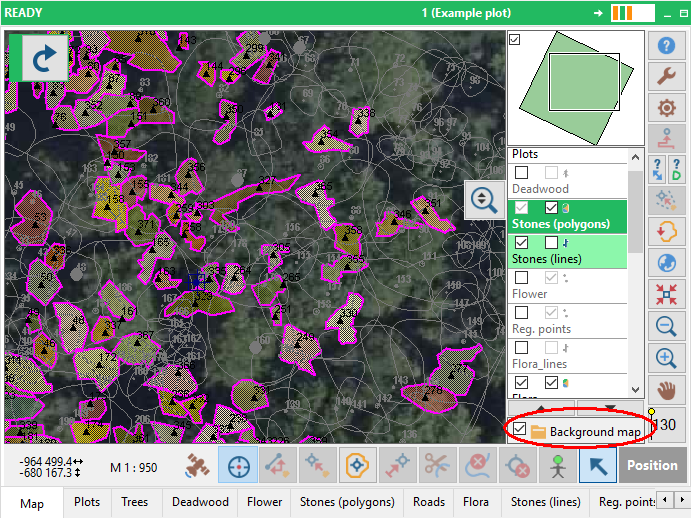
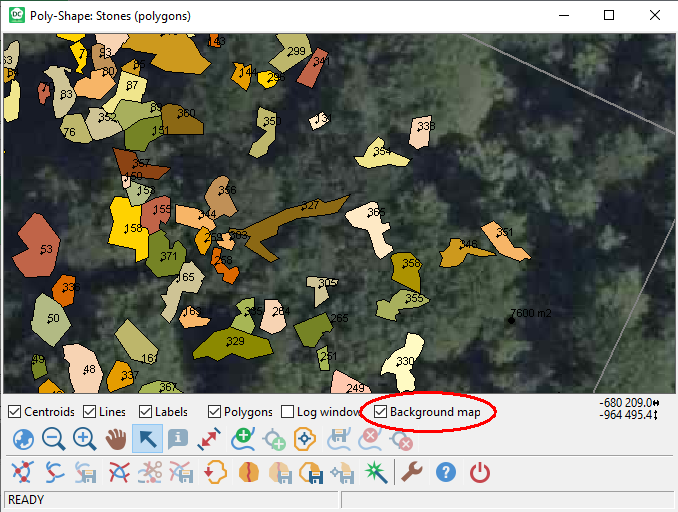
Displaying background map during polygonization
There is a possibility to display a background map during polygonization process. If the background map is available for the plot the polygonization window contains a checkbox allowing to display it.
|