|
Import deadwood comments
Prior to starting to import deadwood data you should prepare table containing these columns:
- ID plots
- ID deadwood
- X co-ordinate
- Y co-ordinate
- Z co-ordinate
- Diameter [mm or cm]
X, Y, Z co-ordinates of all break points on the deadwood center line. If you are importing data from one Field-Map project to another (or from one plot to another within the same project) you could use the inbuilt function for export. Field-Map Project Manager exports deadwood data into a special table Deadwood_Details.
For more information how to export a data deadwood, check Export deadwood from Project Manager
|
- Double click the deadwood layer to make it active
- Click the Tools button

- Click Import Lines option

- Browse for your Deadwood data table and open it

- Open Table window appears
- Optionally select appropriate table (e.g. Access database is used) and click OK

- Assign fields
- Click OK
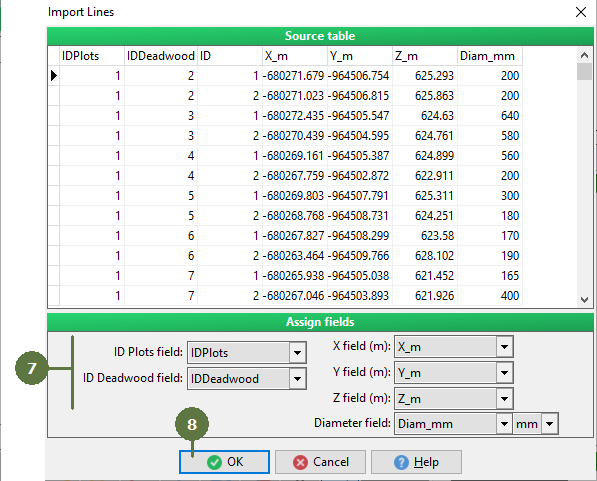
- Deadwood appears in the map

- Switch to the Deadwood form
- Right-button click on Deadwood list and click on Update Attributes from File …

- Browse for data table (in this case, it is same file like previous)
- Click Open

- In Open Table window select appropriate table and click OK

- In Assign Attribute Fields link source and target attributes
- Click OK

- Deadwood attributes are imported to the database

|