7.5 Editing vector layer appearance


Editing background map composition > Editing vector layer appearance
Classification: Single symbol; When a layer uses this classification, there are no differences between displayed entities. This may be useful for displaying plain borders of polygons.
- A layer will only be visible starting from the scale limit.
- Click the “Edit” button to show the “Edit symbol” dialog box; you can edit the appearance of the layer here. The options differ according to the type of a layer (point, line, polygon). In the “Size” edit box, select the thickness of the border line. By clicking on the “Outline color” or “Color” button you can select the color to be used for the border line or polygon infill respectively, or you can define a new color.

Classification: Unique value classification
- Choose Unique value classification to display a layer using distinct attribute values such as soil classes.
- To edit individual class double click the class.

Classification: Interval classification
- Interval classification classifies the chosen attribute. You can choose the start and the end colors from the color palette, number of classes etc.


Classification: Custom symbols (currently available for line layers only).
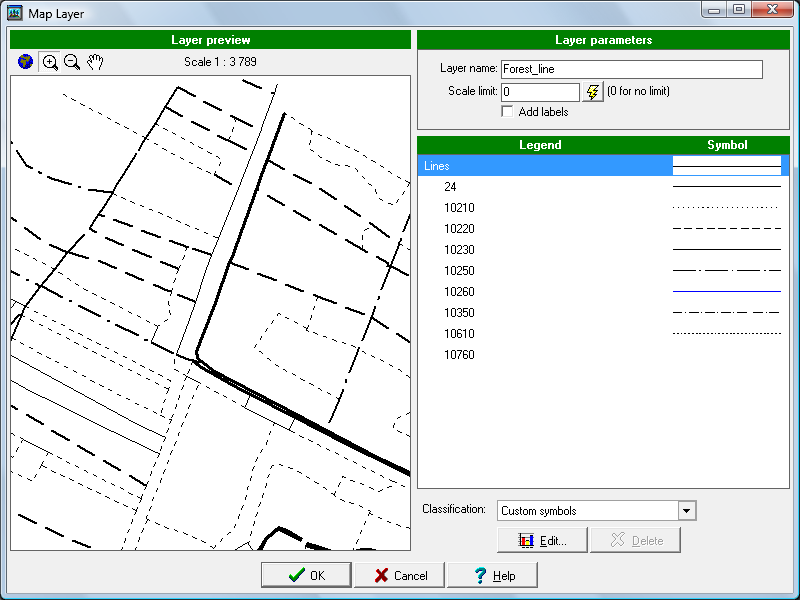

You can prepare custom symbols using Symbol editor tool. (see Field-Map Tools User Guide)
