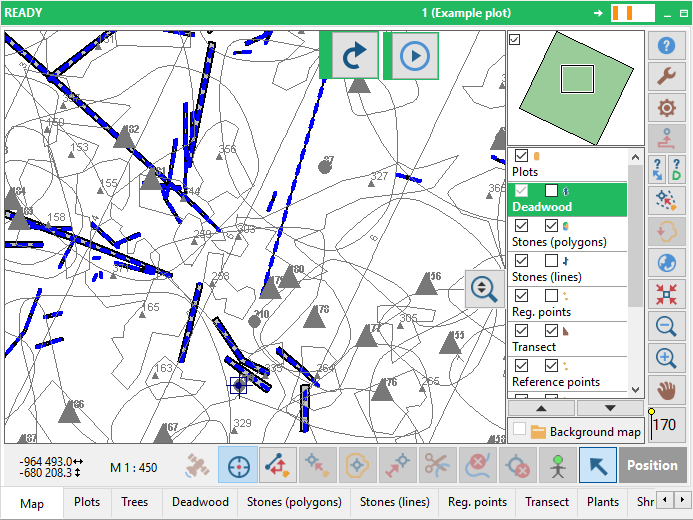
4.17 Layer symbol settings
Defines the type of symbol classification. “Single symbol” means that all entities of the layer have the same symbol; “Unique value classification” means that the entities of the layer have different symbols based on a particular database attribute (e.g. all dead trees have one symbol, living trees another, etc.); “Custom symbol” means that you can assign certain predefined line symbol to line features based on their attribute (e.g. special line symbols for forestry maps). You can show or hide custom symbols by clicking on the “Hide Custom Symbols”option (“Tools” menu).
- Refresh symbols
This option can be rarely used when layer symbols are not shown correctly. It may happen after e.g. imports or some changes in data layer.
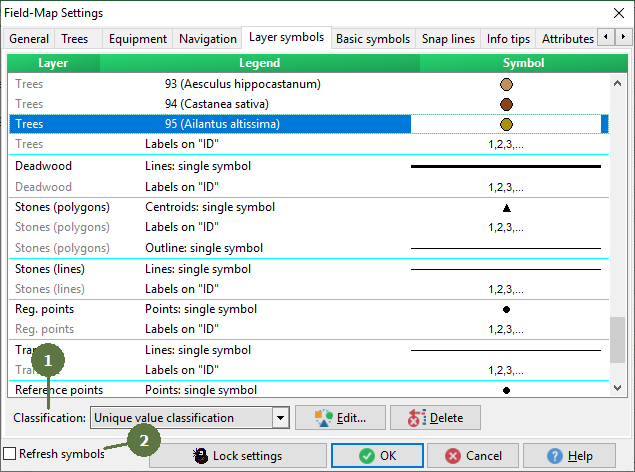
- Select a record
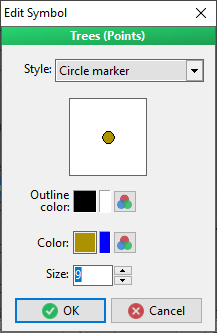
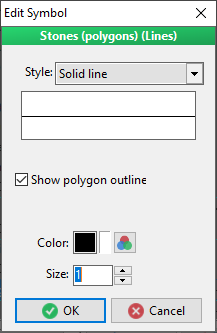
- Click the Edit button or doubleclick on a record to open an Edit Symbol window
Note: Edit button is dependent on Classification. If you selected a record with classification Single symbol, then appears window with Edit symbol only. If it selected a record with classification Unique value classification, then you can select following functions: Edit classification, Edit Symbol, Load Symbols from File and Save Symbols to File. If it selected a record with classification Custom symbols, then you can select functions: Edit classification or Edit Symbol.
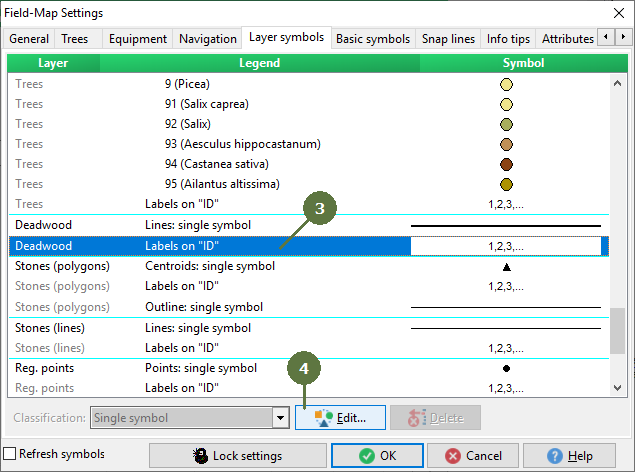
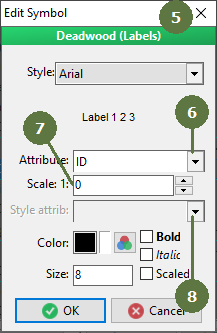
- The Edit Symbol window appears
- Attribute
Defines attributes used for labeling (supported attributes type: string, number (integer and float), lookup list
- Minimum scale for labels
Labels are not visible on a scale smaler than the defined scale. Double click the “layer (labels)” to open the “label” window.
- Style attribute
Defines style attribute change possibility.
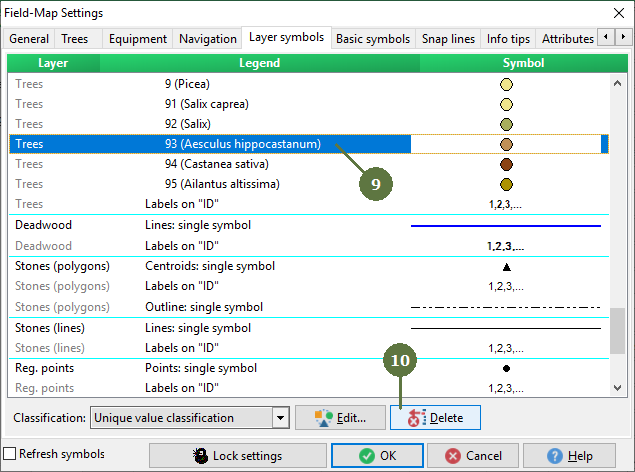
- Select a record to delete
- Click the Delete button
Deletes a record. You can delete records where is the Classification - Unique value classification or Custom symbols
- Click Yes to confirm deletion
EXAMPLE
before edit
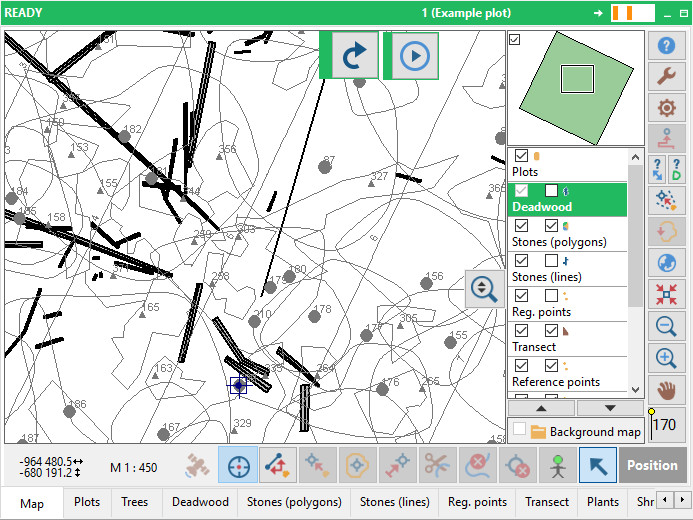
after edit