|
Repeated measurement of trees
For repeated measurement of trees a new Trees layer has to be created in Field-Map Project Manager (see Copying layers in Field-Map Project Manager User Guide). Data from a previous measurement has to be copied and prepared for updating. There are two ways to confirm a tree by a repeated measurement.
1. Focus on the tree and click Accept button.
2. Change DBH or height of a selected tree. In this case Field-Map automatically changes -ID to +ID (see mode of repeated measurement in Copying layers chapter in Field-Map Project Manager User Guide) and remove the tree from the list of trees offer. The measure new point function activates The closest tree window as long as there are trees in the plot to be identified and transferred from -ID to +ID or with ID 0.
|
- Switch to the Map form
- Select the Trees layer by double clicking on its label
- Click Measure new point
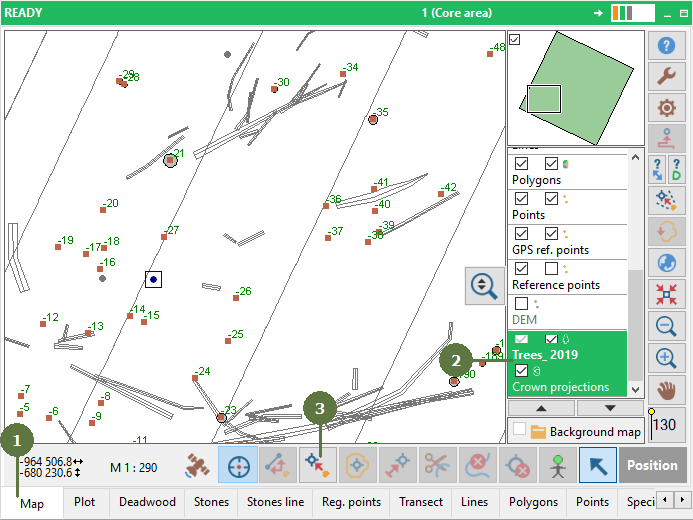
- a) There is no tree in search tolerance range which set in general settings option
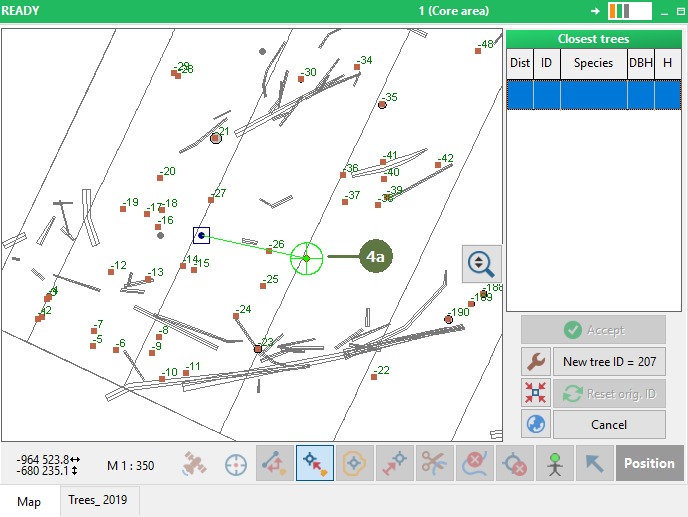
4. b) The trees are in search tolerance range.
- Attributes of trees are shown in the Closest trees window
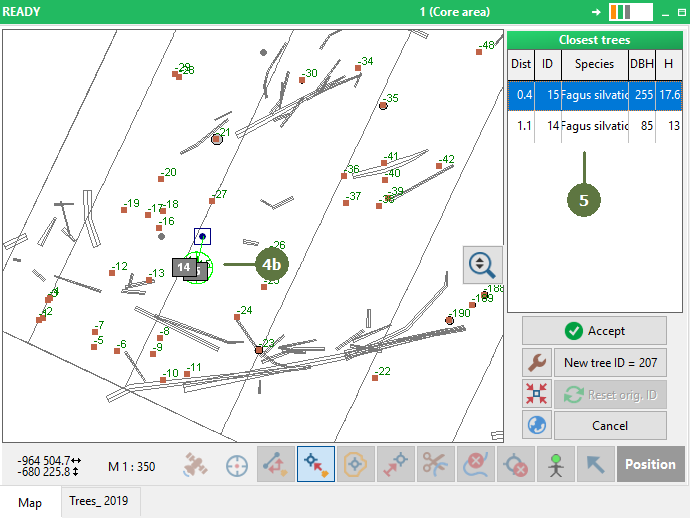
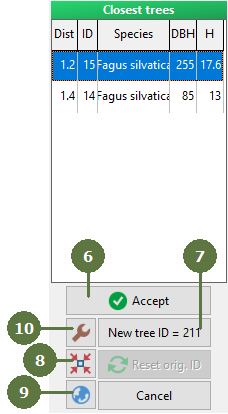
- Click Accept button to approve the tree ID from the previous measurement
6b Click Accept + Move button to approve the tree ID and move tree to the new position
- Add the tree with a new ID if the tree is new
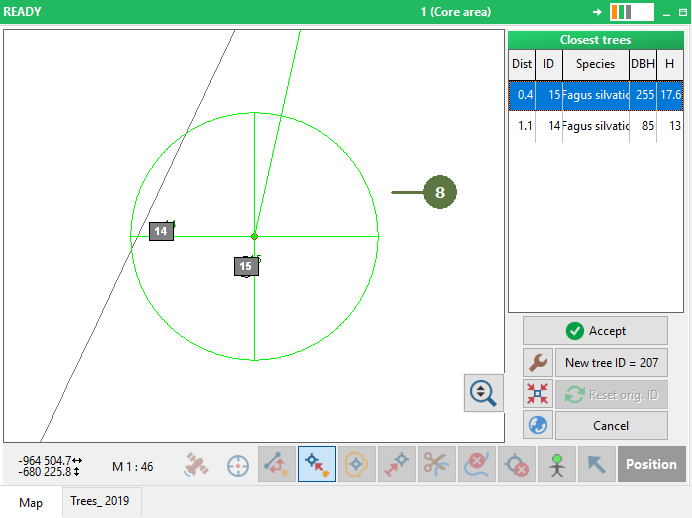
- If you click Zoom to layer extent button then the map zooms in
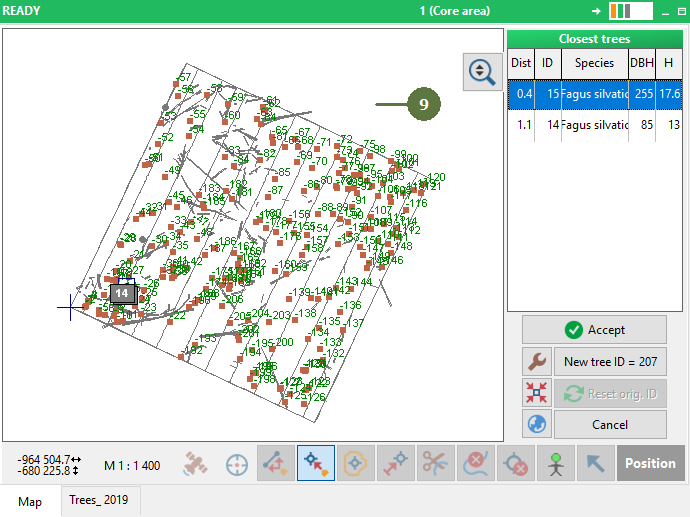
- If you click Zoom to full extent then the map zooms out
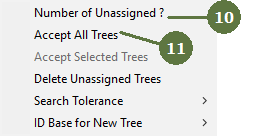
- Click Tools button and select Number of Unassigned? function to select unassigned trees
- Accept All Trees function in Tools menu to change -ID to +ID of all trees inside the plot if you are able to identify all trees on the plot without equipment
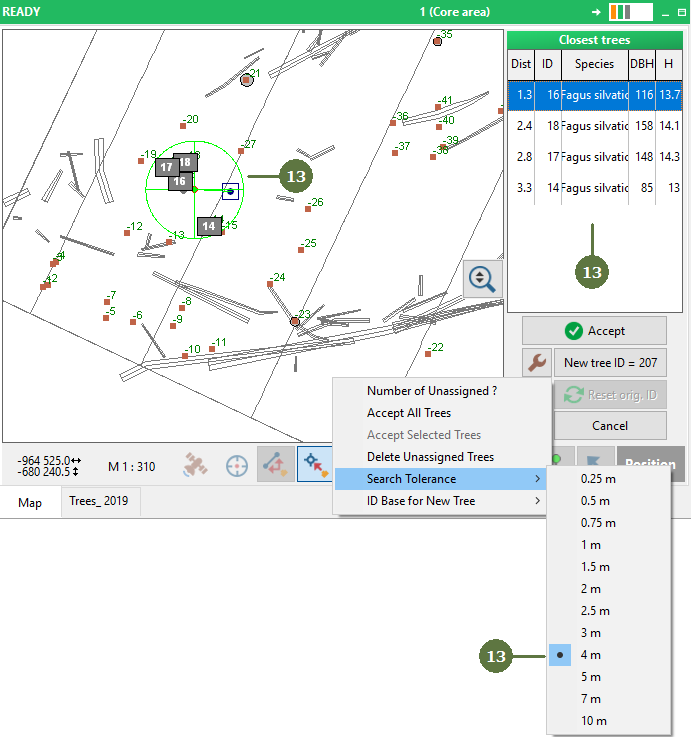
- Search tolerance represents a green circle in the map. You can change this tolerance. Search tolerance is set on 1.5 m. One tree is in the green circle
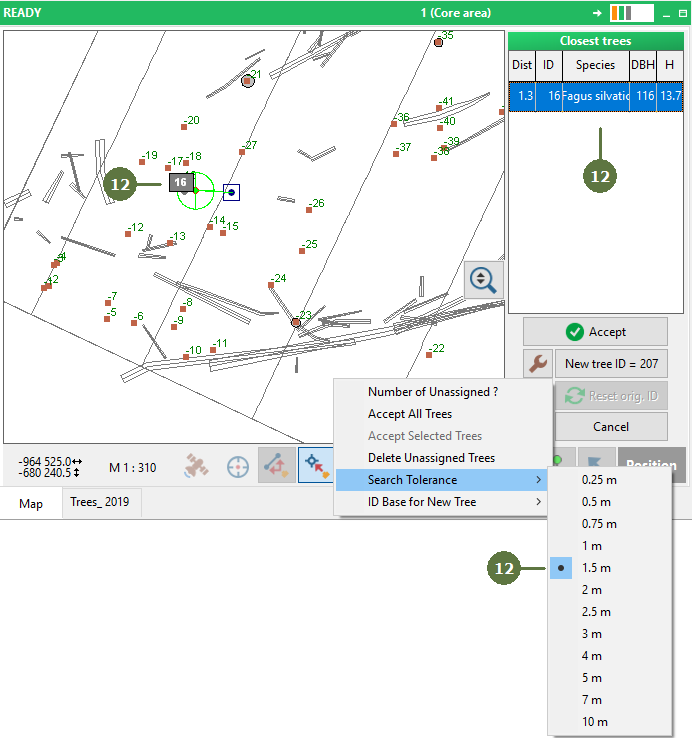
- Search tolerance is set on 4 m. Four trees are in the green circle
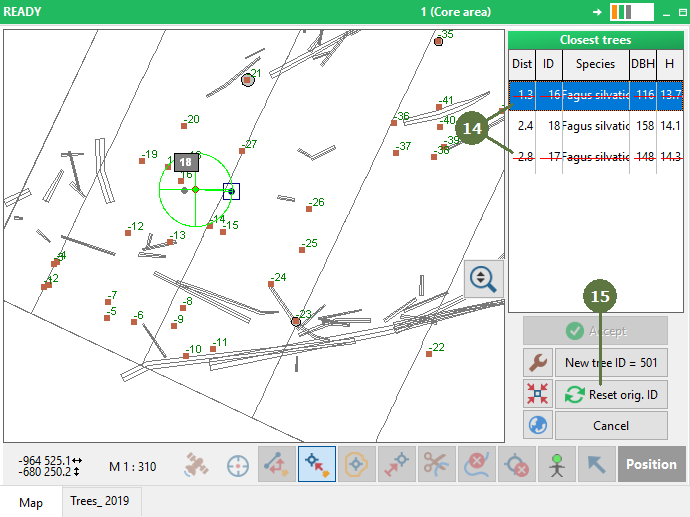
- Measured trees are strikethrough red line in the list Closest trees
- You can restore a measured tree ID by click Reset orig. (original) ID button
|