|

|
10.5 Arrange Extension Menus
|


|
Extensions > Arrange Extension Menus
|
Arrange extension menus
For an easier accessibility, user extensions can be made available within four different menus in Field-Map Data Collector: the Quick menu, the Tools menu, the Extensions menu and Floating buttons. The extensions can later be rearranged within these menus at any time. For more information see the Arrange extension menus chapter in the Field-Map Data Collector User Manual.
Note:
For a better and more clear arrangement of the menu items, you can add separators and change the order of items.
|
- Select the menu item Extensions > Arrange Menus of Extensions
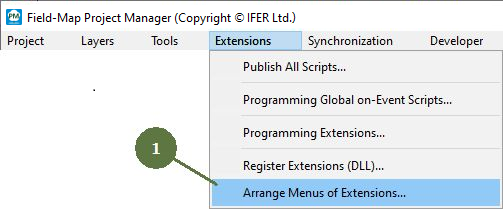
- The ArrangeMenus of Extensions window appears, choose the part to arrange:
- Extension menu (for Filed-Map Data Collector / Base screen right ribbon / Extensions)
- Quick menu
- Tools menu (for Field-Map Data Collector / Map / Tools menu)
- Floating buttons (floating bar in Field-Map Data Collector / (Map))

- Manage the extension(s) for the relevant quadrant:

(left to right:)
- Add group
- Add sub-group
- Add task - a new window Select Extension appears, select an extension to add from the list of Registered extensions and press OK.

or
- Click on the undesired extension row, then Delete group/task icon and click Yes in the newly appeared confirmation window.

|
|
|
|
© 2024 IFER Monitoring and Mapping solutions, Ltd.