3.21 Appearance on the form


Working with layers > Appearance on the form
|
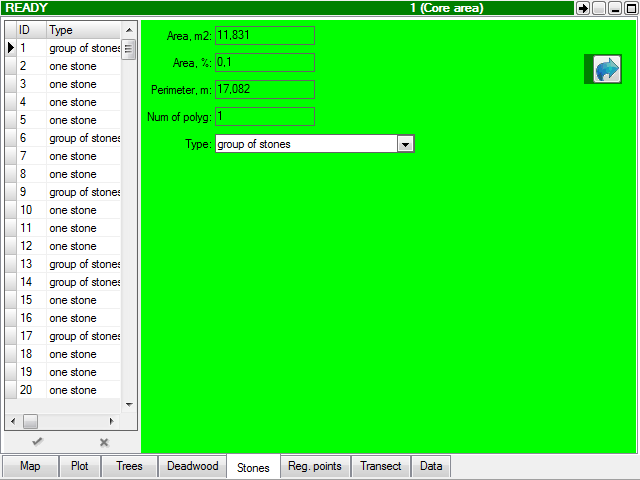
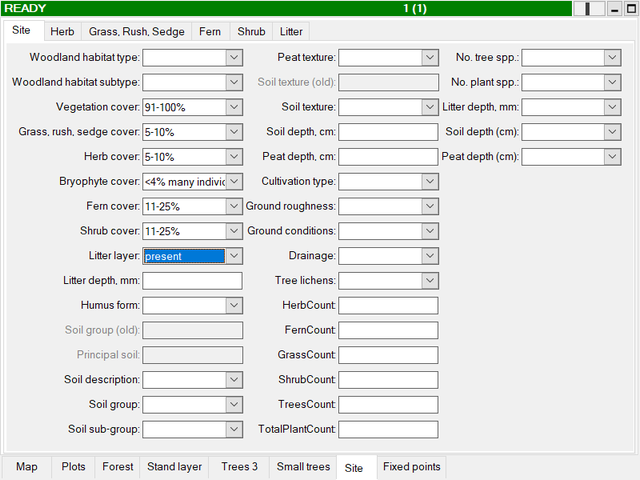
The “Appearance on the form” can be understood as setting the position of layer edit controls (such as edit boxes, combo boxes, etc.) on the layer form in Field-Map Data Collector in relation to child data layer form/-s. In other words, the individual attributes of the respective layer appear on the layer form together with form(-s) of the layer’s child data layer(-s). This means that changing the “Appearance on the form” has effect only if the respective layer has one or more related child data layers. Note: Field-Map itself tries to arrange the controls optimally, e.g., by using scroll bars. However, use the trial and error method to find the best arrangement. Background panel color You can also set a background panel color in Layer from color options of a specific layer.
|
Note: If there are several child data layers with sibling relationship, their forms appear as individual tabs on the parent layer form. screenshots from Field-Map Data Collector: full page
left
top (30%)
top (50%)
|