3.4 Copying layers


Working with layers > Copying layers
|
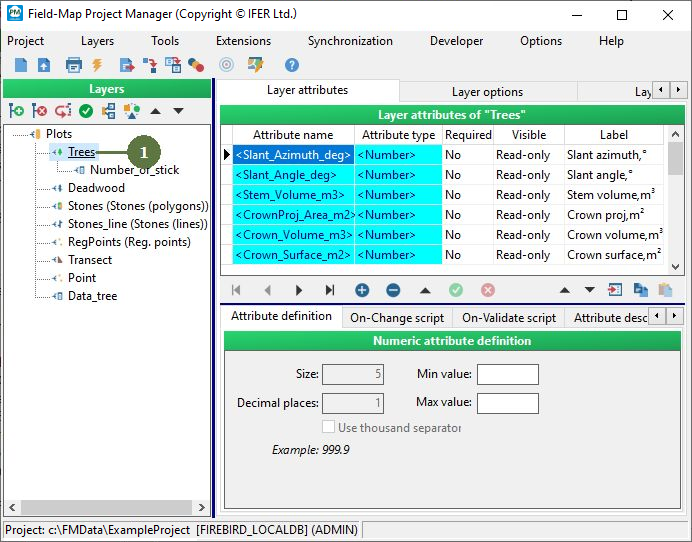
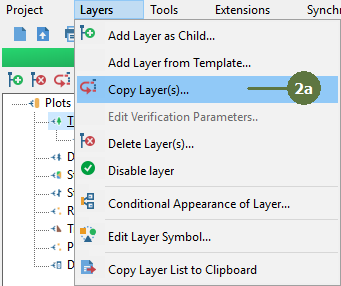
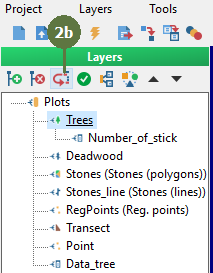
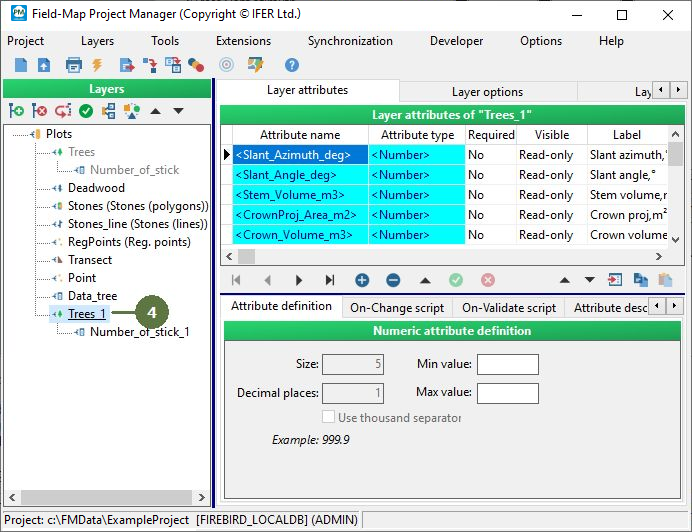
A layer copying becomes useful in projects operating with a repeated measurements. The source layer is copied into the new layer. Copying layers vs. Adding layers and "Use an existing layer as template option". Copying layers has further consequences concerning data verification. If you do not intend to copy and verify attribute values, but just want to copy the database structure of a layer, use Add Layer as Child and check the “Use existing layer as template” check box instead. Copying child data layers The option Include child data layers is enabled automatically. If you want to copy a layer without child layers, just untag the check box in the upper right corner of the “Copy layer” dialog box. Layer disabled There can only be just one tree layer active, one deadwood layer active and one transect layer active in the project. Thus if you copy a tree or a deadwood, the original layer becomes automatically disabled (grayed). Transect cannot be copied at all. |
|
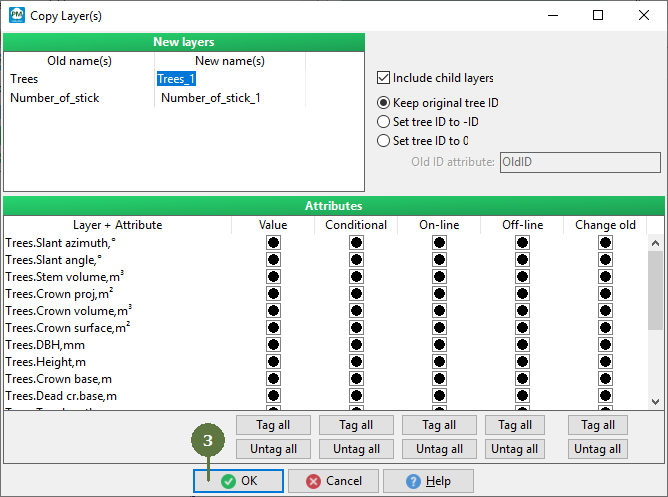
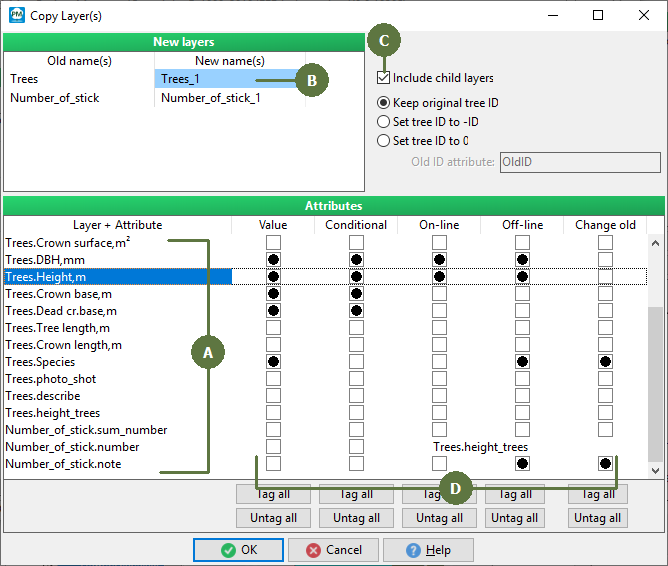
Copying layers (detailed)
- A list of available Attributes in the source layer displays the attributes of all layers included in the copying procedure.
- When copying a layer, you can change the name of the new layer from the default “name_1” to a new name.
- The option "Include child layers" enables you to copy all the layers which “hang” under a copied layer in the database.
They can also be renamed. - It is possible to decide about the way of copying the data for each attribute and the mode of verification of its value during a fieldwork.
A value of the attribute can be transferred to the new layer of the repeated measurement. It is recommended to copy only those attributes which are not assessed subjectively. If copied, then the values are visible in the field form.
- Optionally, it is possible to use conditional value copying. If values are copied conditionally, they are then visible in the field form in italics and require editing.
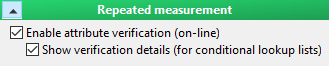
- On-line verification of attribute values is an advanced function of comparing the new value with the old one whenever the data is changed.
- Off-line verification has a similar function but it is activated on request. When requested, the data of the whole plot are checked and discrepancies are reported.
- During a resolvement of discrepancies, it is also possible to change the old values in the layer of the previous measurement. However, a special permission is required for that. This permission needs to be granted for each attribute individually.
Parameters “On-line”, “Off-line” and “Change old” can be changed later in Field-Map Project Manager using menu item “Layers > Edit verification parameters”, see Editing verification parameters.
Mode of verification can be set while copying layers. However, the mode can also be easily changed later using the Field-Map settings.
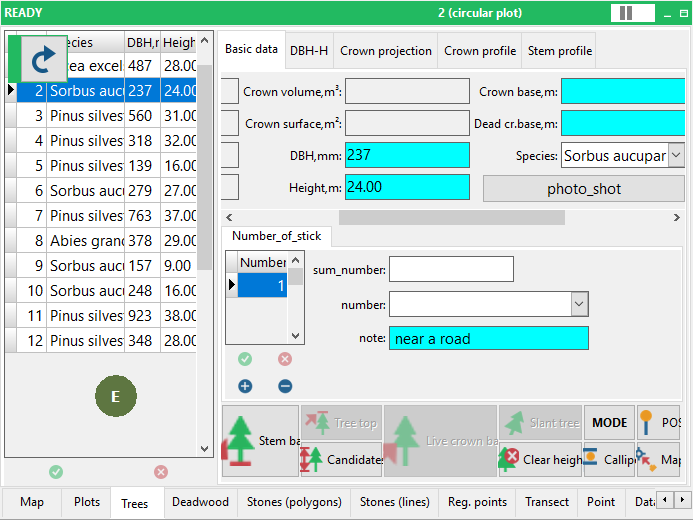
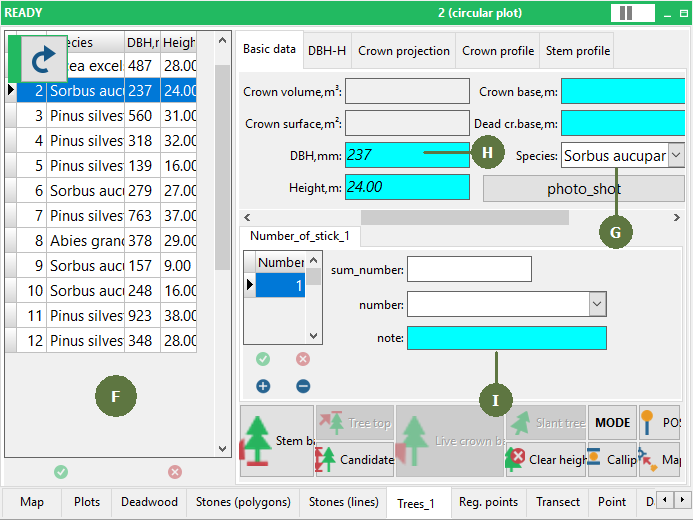
- A data before copying.
- A data after copying.
- The attribute "Species" has a value which can be modified. However, we do not expect a plant to turn into a different species, so it is displayed in regular font.
- The attribute "DBH" requires updating, therefore it will be displayed in italics.
- The attribute "Note" will change certainly and we do not want to see the old value so that we can assess the new value independently.
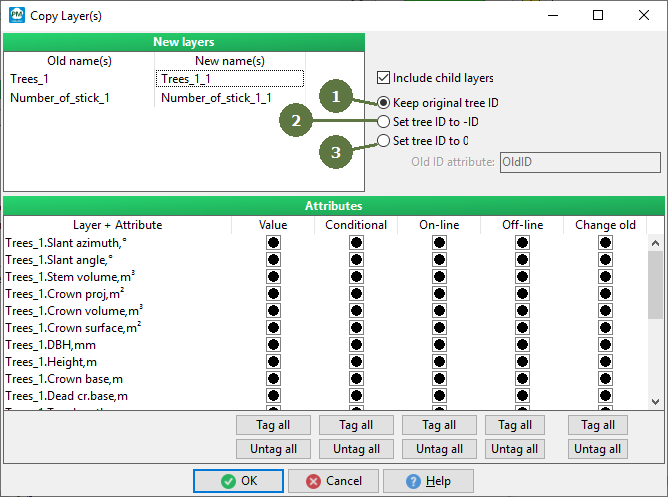
If the layer "Tree" is copied, you have three possibilities to set a new tree ID.
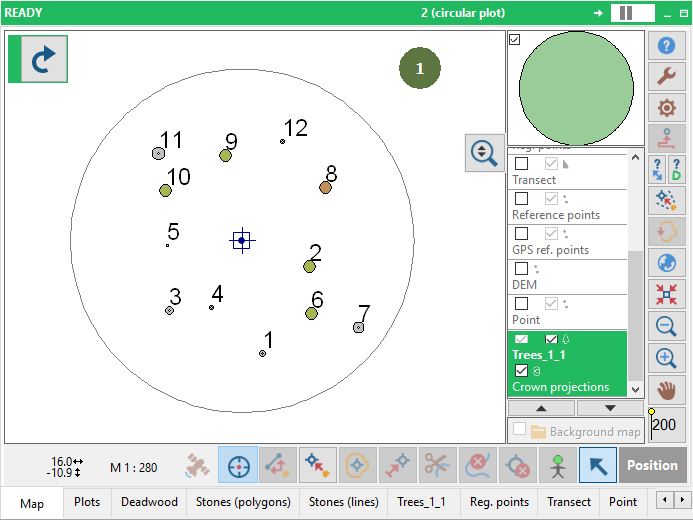
- Keep original tree ID - a tree ID in the copied layer will be the same as in the original layer. This approach of tree numbering is more convenient for those who use a stand-alone electronic calliper for a tree diameter measurement. Diameters are usually measured in a sequence that corresponds to the numbering of trees. In a growth trees are included automatically and in a removed trees are automatically skipped.
- Set tree ID to -ID - a tree ID in the new layer will be the same as in the original layer with a minus (-) index. Thus in Field-Map Data Collector each tree will have its respective ID visible from the beginning and every time a tree is identified in the field, its ID value changes from negative to positive.
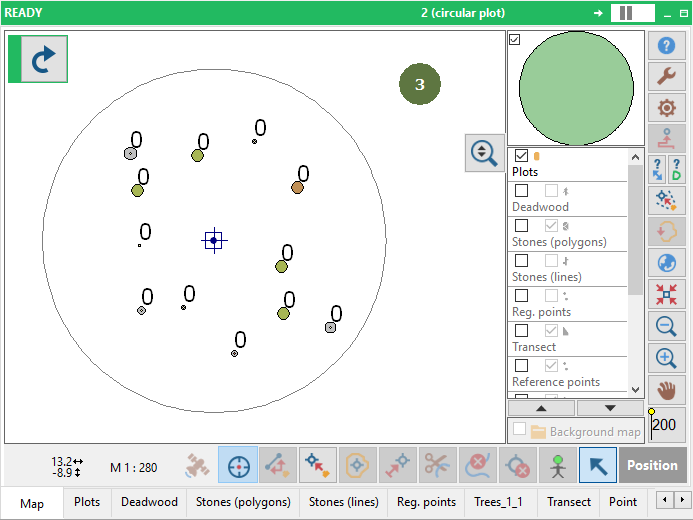
- Set tree ID to 0- all trees in the copied layer will have its ID "0". In this case all trees will have its ID equal to zero and during the fieldwork new values are set to them. Since the identification of tree is primarily based on their co-ordinates, the ID is secondary and there is no danger of loosing track when a repeated measurement of individual trees is carried out. However, the original ID is saved into a new attribute created in a copied layer.
screenshots from Field-Map Data Collector

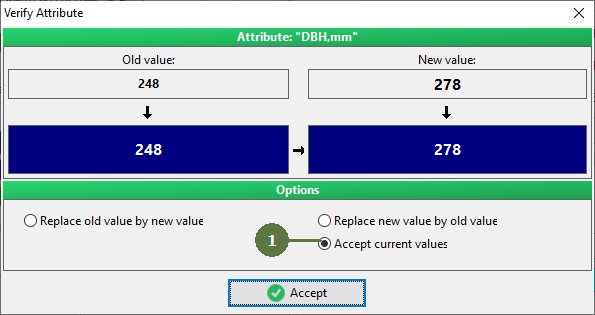
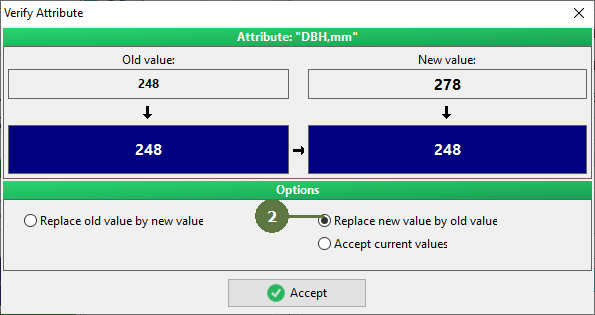
On-line verification runs automatically whenever the attribute value has changed. The new value is compared with the old one and if the difference is found, a confirmation dialog appears.
There are three options:
- Both the new and the old value are accepted, i.e. the change is approved and recorded.
- The old value is found to be the correct and the new value is replaced with the old value.
- The new value is found to be the correct and the old value is replaced with the new value; in this case, a description of the change is recorded automatically to an OldChangesLog table and therefore, all the changes to the old data are well described and can be reversed if necessary.
screenshots from Field-Map Data Collector
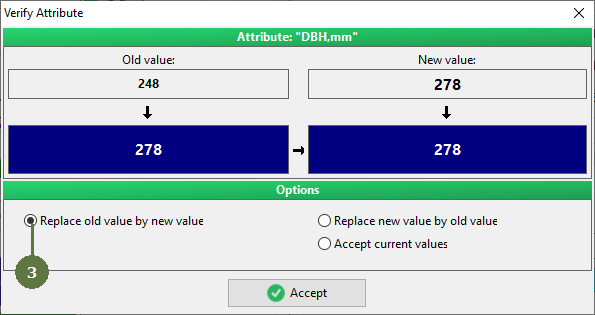
In order to make the last type of validation available, the option “Change old” needs to be activated during a data preparation.
If, for some reason, the old value of an attribute is missing, it is filled automatically with the new value.
Data verification can be deactivated in Field-Map Data Collector > Settings.