|

|
4.3 Adding a new attribute
|


|
Working with layer attributes > Adding a new attribute
|
Attribute name - no special characters (?, *, &, $, …) or spaces are allowed. The name represents the attribute in the database.
Attribute type - differs according to the purpose of the attribute.
Required: Yes - this attribute must be filled. The validation procedure in Field-Map Data Collector verifies that data are assigned to these fields.
Required: No - this attribute may remain empty. The validation procedure skips this field.
Visible - the attribute is visible and editable.
Read-only - the attribute is visible but non editable.
Non-visible - the attribute is not visible in Field-Map Data Collector.
Attribute label - allows special characters. Labels appear on input forms of Field-Map Data Collector. (If no label is specified, the attribute name is used.)
|
- Select the Layer that you want to add an attribute to.
- Click the Add new attribute button.

- A new row appears in the list of attributes.
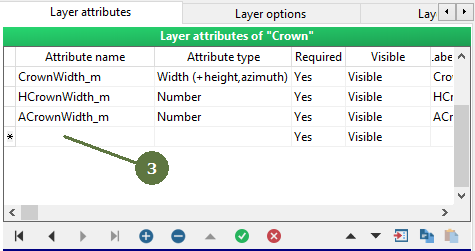
- Fill in the name of the attribute.
- Choose the type of the attribute.
- Choose whether a value is required for the attribute or not.
- Change the visibility to Read-only or Non-visible or leave the default value Visible.
- Fill in the attribute label to be shown in Data Collector
- Click the Post edit button.

|
© 2024 IFER Monitoring and Mapping solutions, Ltd.