|

|
4.8 Importing attribute definitions from an existing table
|


|
Working with layer attributes > Importing attribute definitions from an existing table
|
Importing attribute definitions from an existing table
If the structure of Field-Map project needs to follow the structure of an already existing database, it is useful to import attributes from the existing table instead of typing them. Field-Map supports imports from dBase (dbf), FireBird (fdb), MS Excel (xls, xlsx) and MS Access (accdb, mdb) formats.
Lookup list attributes
Lookup lists are a “Field-Map specific” format of attributes; therefore, all the attributes, which should be of a lookup list type, have to be redefined in Field-Map Project Manager after the import. The reason is that there may not be any lookup lists in the project’s lookup list destination folder yet. This prevents the database from becoming disorganized.
The number in the third column in "Import Attribute Definitions" window indicates the size of string attributes.
|
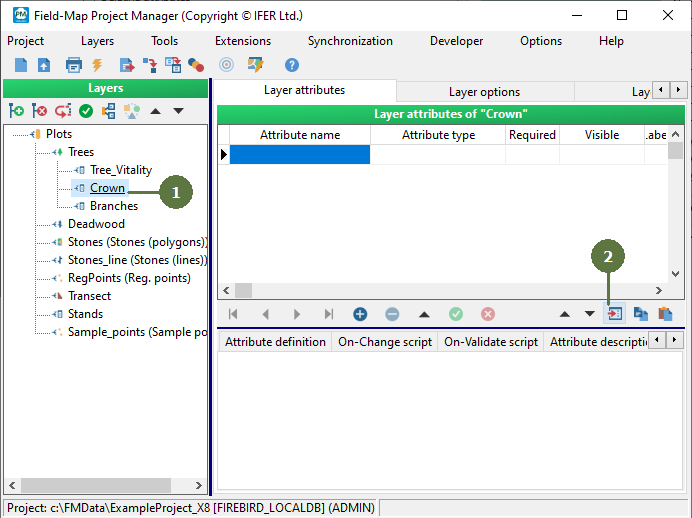
- Select the Layer that you want to add attributes to.
- Click the Import attribute definition from external table button.
A browser appears.
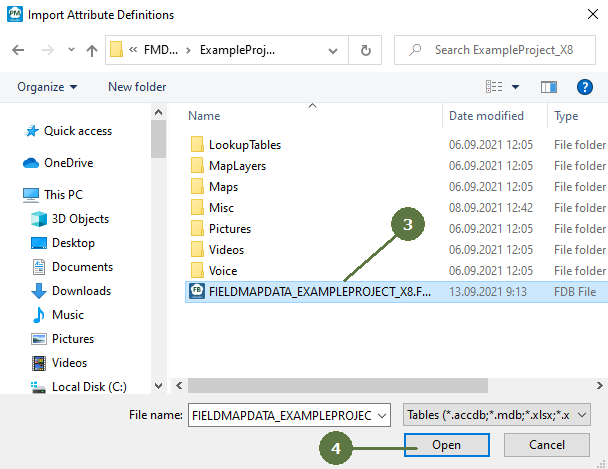
- Select the table or database that contains your attribute definitions.
- Click the Open button.
A list of available tables in the database appears. In case of table files a list of attributes appears (go to step 7).
- Choose the table with the desired attributes.
- Click OK.

- Tag the fields that you want to import.
- Click OK.

- The attributes have been imported.

|
© 2024 IFER Monitoring and Mapping solutions, Ltd.