8.5 Create Image Catalog from WMS Layer
|
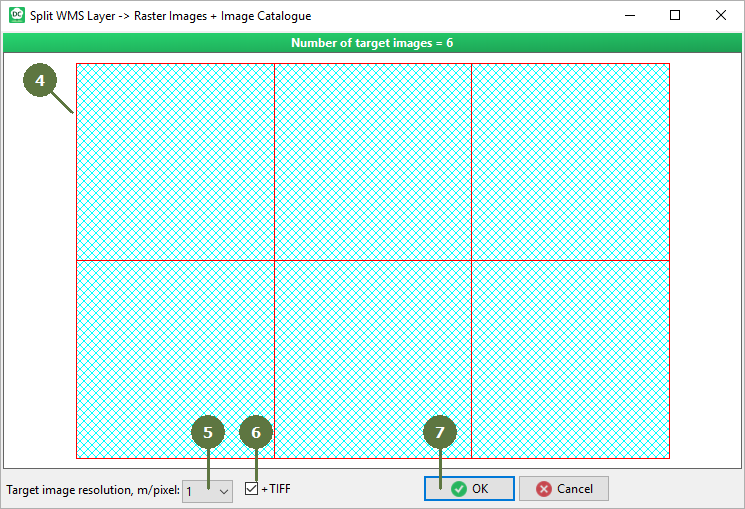
For details about Image catalog and its main advantages see chapter Building an image catalog. Target images resolution You can define spatial resolution (i.e., size of one pixel) of rasters of image catalog. You can choose one of predefined pixel resolutions spanning 0,05 to 5 m/pixel. With improving resolution also increases the total number of images covering the area. TIFF By default Field-Map creates JPEG tiles from WMS. You can tag, whether to create apart from JPEG images also TIFF images of individual map squares. These are stored in the same folder as image catalog. Storage In order to save disk space on your portable device during backups, store your raster maps out of project folder. In case of storing of maps in Maps folder of your project each backup will contain raster maps as well. |
|