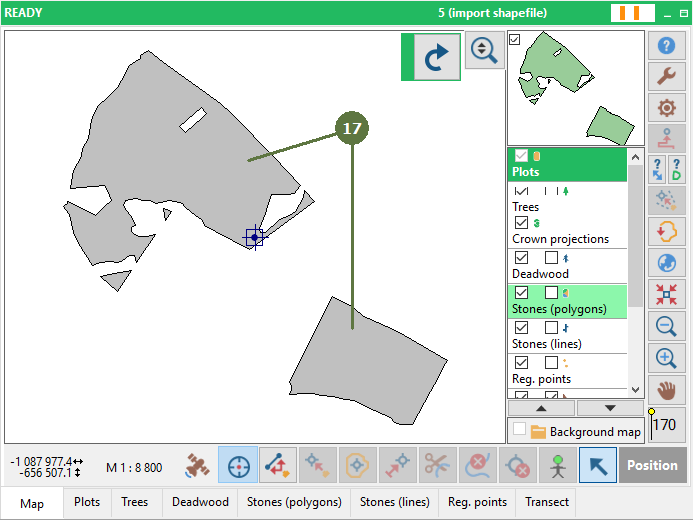
3.6 Establishing new plot using an existing shapefile
|
While importing a plot border from shapefile, you need to specify a map projection of imported shapefile. For this reason it is necessary to define the map projection parameters first. (see chapter Georeferencing/Adding new system). Selection settings You can define the way of polygons’ selection. Select Polygons Intersecting Rectangle – marks polygon(s) which were intersect by a selection rectangle Select Polygons Inside Rectangle - marks polygon(s) which were entire inside a selection rectangle Single polygon – marks only selected polygon Multipolygon – marks selected polygon and other polygon(s) with identical centroid (ID) |
Select the way of the new plot creation
Actually three polygons are selected
Note: If you have selected more than one polygon, Field-Map Data Collector automatically combines them into a single polygon and erases all internal borders. |