11.5 Snapping lines
|
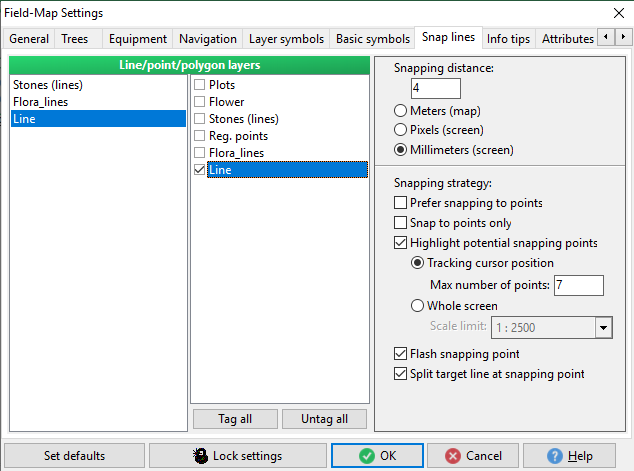
It is possible to set the snapping options in the Settings. See the Settings chapter for more details.
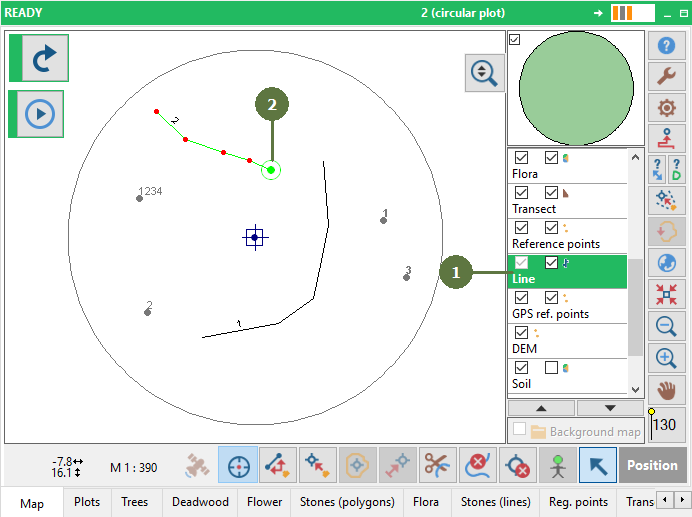
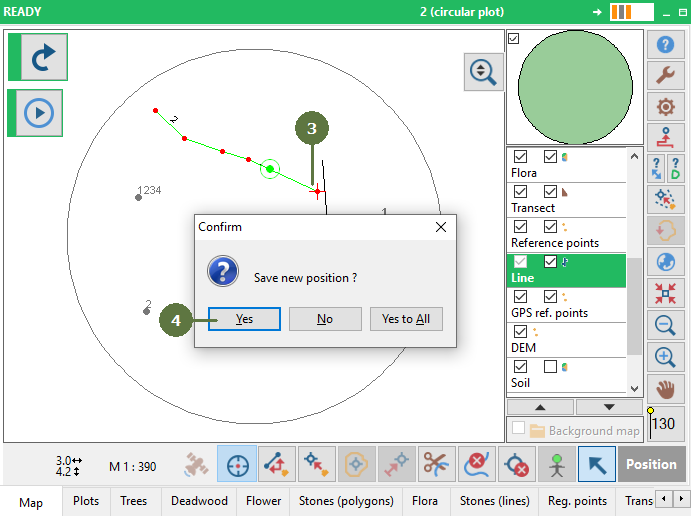
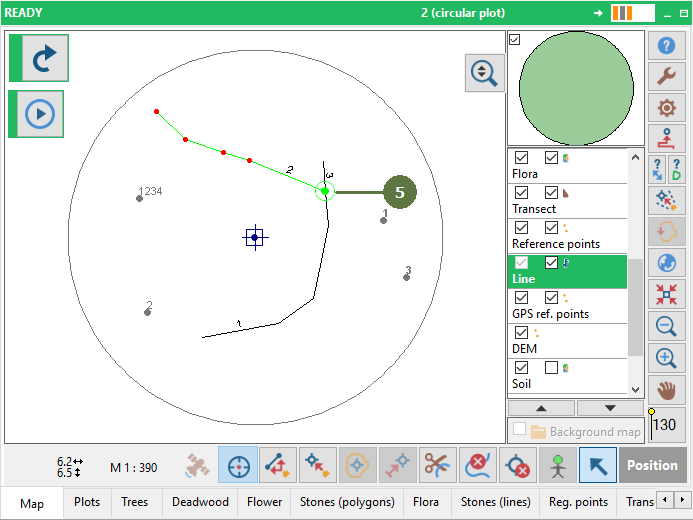
Target layer for snapping can be chosen for each layer separately. It is possible to optimize the behavior of individual layers, e.g. snapping distance or highlight potential snapping points |
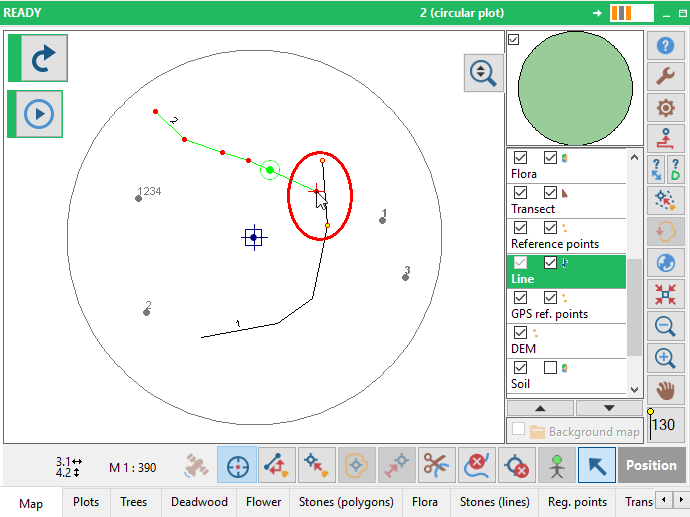
Note: If you have a moving point close to a other line then appears highlighted points on the other line. For more information check Line-snapping settings
|