10.16 Moving points
|
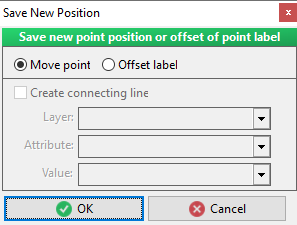
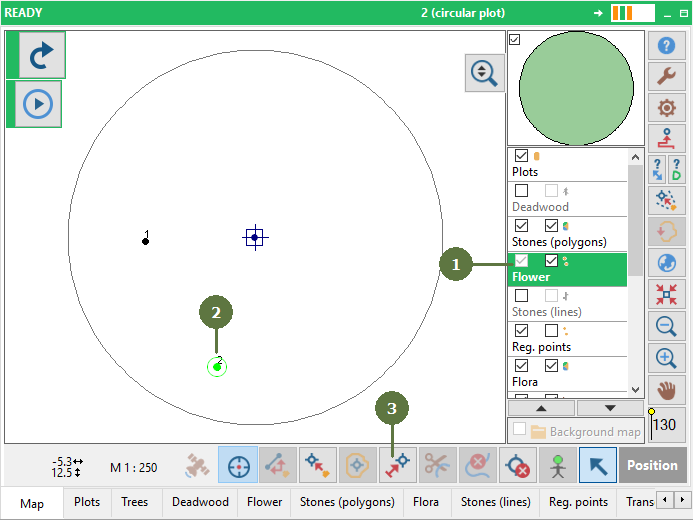
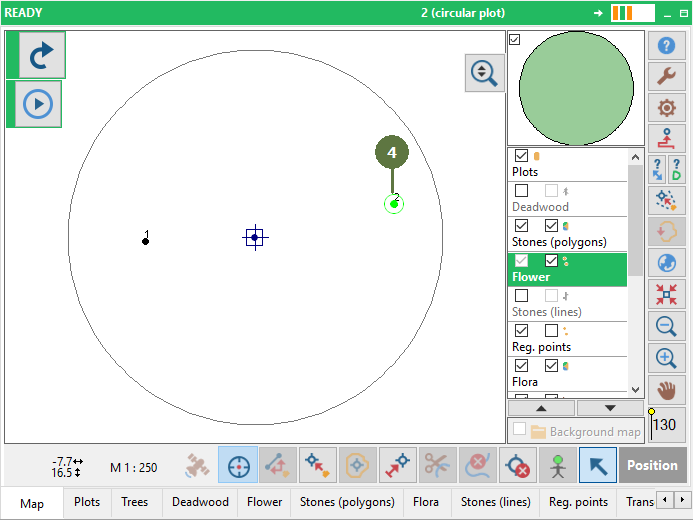
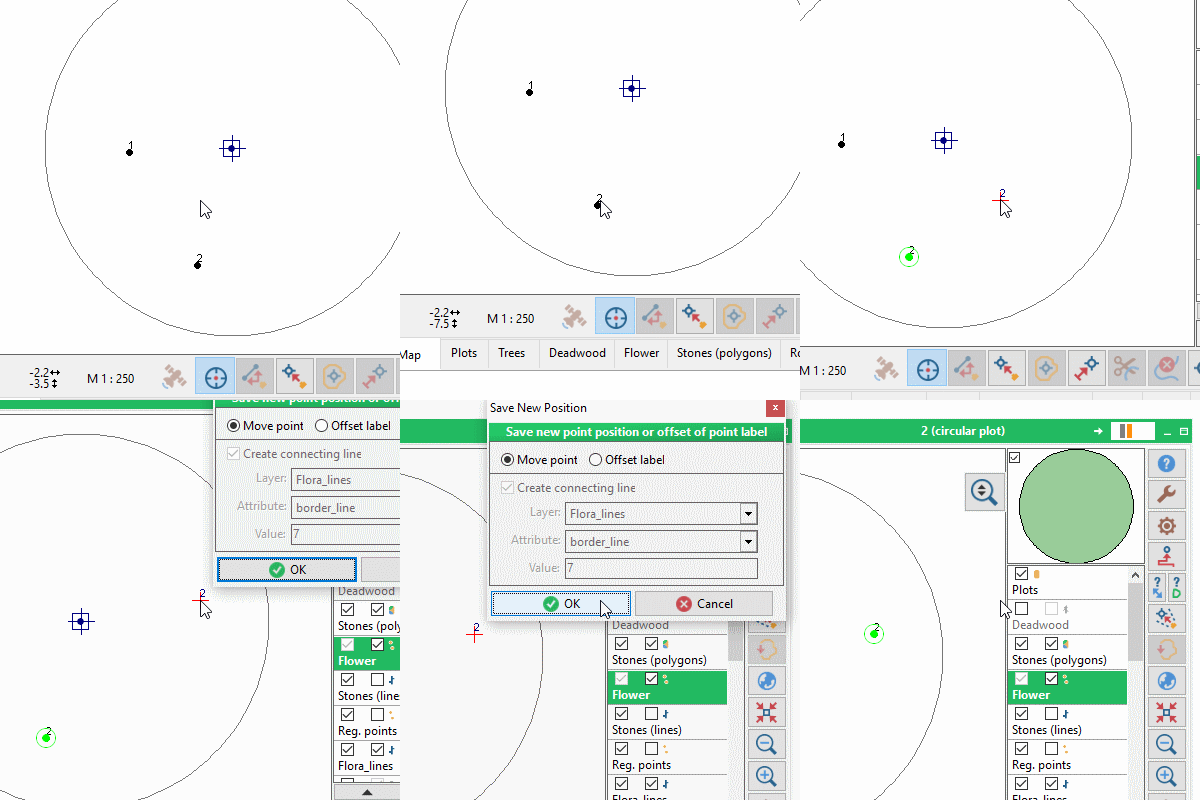
To move a point you can use any of the four methods of measuring entities as explained in “Adding entity” (laser, GPS, pen, keyboard). Moving a point is useful when you want to change a point location but keep its attributes. Drag & drop It is also possible move point by selecting and dragging by left mouse button, where pen mapping is allowed. After release window pops up to choose between moving point and just offsetting label.
|
Example
|