Note:

The individual steps of this example are discussed in detail in corresponding chapters.


Selection.xml file:


Parameters for border lines

NAME: Name of classified layer

TYPE: Type of highlight border shape

1 = circle

2 = square

SIZE: width of a highlight square or diameter of highlight circle (in meters)

COLOR: RGB color

LINEWIDTH: width of a highlight border line


Parameters for symbols

NAME: Name of classified layer

TYPE: 5 - definition of symbol

XOFFSET and YOFFSET:

Offset of the symbols area (in meters). Symbols area is square. By default (X and Y offset is 0) is left down symbol of the symbols area exactly in the selected point

XSTEP and YSTEP: Offset between symbols (in meters)

XCOUNT and YCOUNT: Number of symbols in rows and columns

SYMBOL: Type of symbol

1 = square symbol; 2 = triangle symbol; 3 = cross symbol; 4 = rectangular symbol

SIZE: size of symbol

COLOR:: RGB color

  1. Create and compile a FM project


  1. Copy map files into folder Maps in your Field-Map project


  1. Copy (create) selection.xml and classification.xml into root folder of Field-Map project


  1. Edit file Classification.xml in any text/xml editor, see green left column


  1. Edit file Selection.xml in a text (or xml) editor, see green left column


  1. Edit Project.ini file in a text editor (you can edit the file after establish a plot)


Note: Path to project.ini - ProjectName/Misc


  1. Establish a new plot, for more information see Establishing new plot using an existing shapefile


  1. Select a polygon for a plot


  1. A path to the selected polygon appears
  2. Click OK


  1. A new plot appears


  1. Double click a point layer to make it active


  1. Create grid of points for classification, for more information see Creating a grid of points


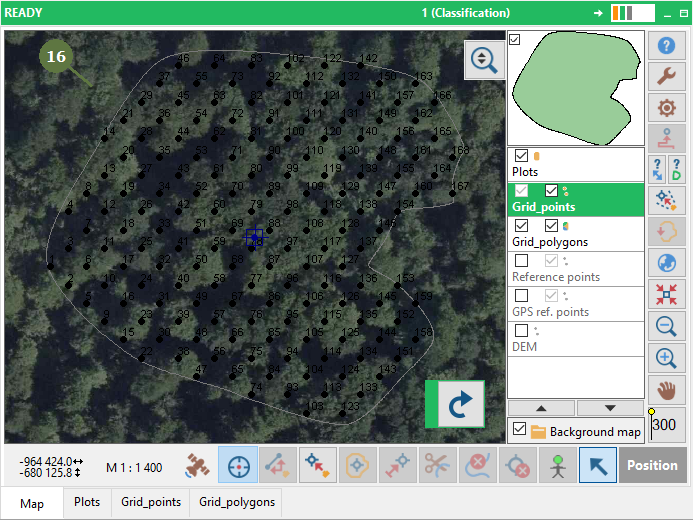
  1. The grid of points appears on the map
  2. Open background map (Arial photo, satellite image or map composition), for more information see Opening background maps from file


  1. The background map appears


  1. Set layer symbols for the point layer in the Settings, for more information see Layer symbol settings


  1. Layer symbols has been changed


  1. Choose first point for classification and start to classify points (use hot key)