4.2 General settings - Mapping and Input options

MAPPING OPTIONS:
- Measure series of points
When active, Field-Map automatically expects a series of consecutive measurements. The “Add point” button remains active until it is switched off manually. It is useful for the measurement of any point at the research plot and also for the measurement of points on lines.
- Automatic line snapping
When active, nodes newly added to line can be automatically snapped to the nearest line. By tagging this option you will activate Snap lines form. Snapping can help you to keep topology.
- Enable attributing prior mapping (points, lines)
Attributes of GIS entities can be entered prior to new entity being mapped. The entities, which do not have map equivalent, have light blue background. Later, when the entity is mapped, the message asking for linking this map entity to the database record appears on the screen. By confirming this message the link between map and data table is established (the light blue turns white).
- Save DEM data automatically
If this option is active, any measured point with [X,Y,Z] coordinates (including trees, lines, etc.) is stored also in DEM (Digital Elevation Model) data layer of Field-Map. The purpose of this function is to collect data for building a digital terrain model.
- Save clean lines after PolyShape routine
When active, you will get a confirmation message of whether to replace lines in polygonal layer with lines cleaned by PolyShape routine. It is usually better to keep measured lines (this allows user to repeat polygonization routine), but in case that you need “clean” data you might find this function useful.
A confirmation message

Example
If you click on No button

If you click on Yes button

- Full map redraw after delete
While active any deleting of the map entity causes redrawing of whole map. If not active only particular part of map surrounding location of deleted entity is redrawn. Redrawing background map compositions like large aerial photos can slow down the fieldwork. In such a case it is advised not to activate this option.
- Redraw while moving zooming slider
While active map renders continuously while dragging zooming slider. When working on vast projects map redrawing can be demanding. You are able to set scale - zooming out beyond this scale the map will not redraw anymore until you let dragging the slider.
A map is not redraw yet


- Allow multiselect of map entities
When active the rectangular or polygonal selection of several map entities is allowed.
- Hide mapping buttons for map layers w/o mapping
When active, the function hides mapping buttons (a horizontal toolbar in the Map form) if you have untag a function Allow mapping in Project Manager - Layer options.
The function Allow mapping is untagged in Project Manager

Mapping buttons are hidden

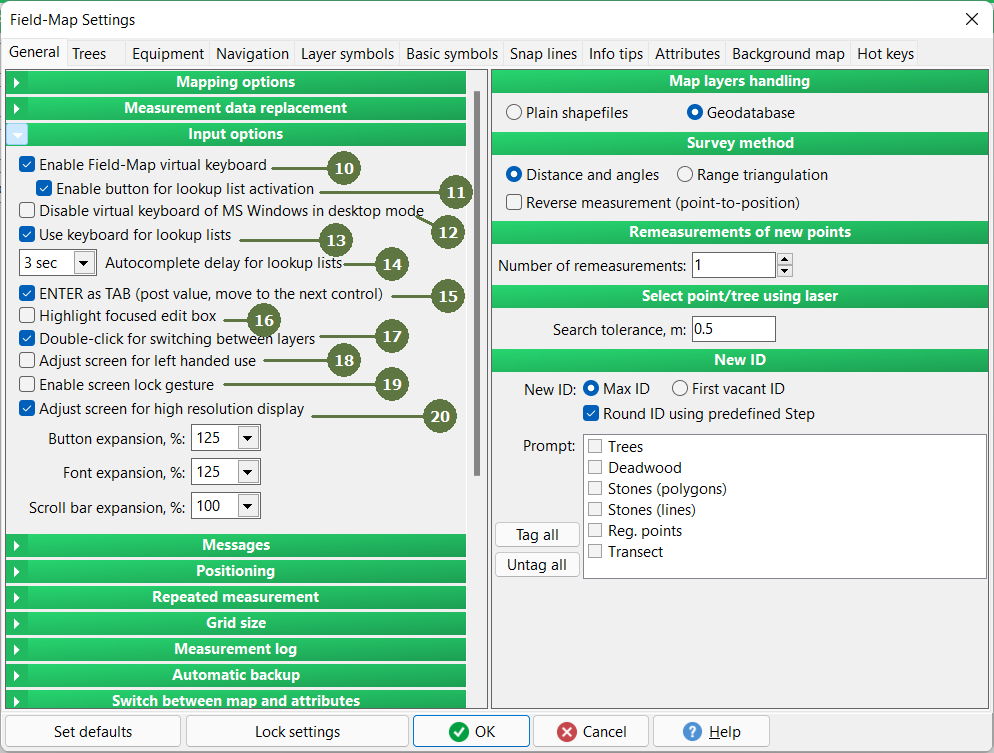
INPUT OPTIONS:
- Show virtual keyboard
The virtual keyboard is automatically activated for entering data into Field-Map forms. This option is necessary for the work with keyboardless field computers.
Keyboard


- Enable button for lookup list activation
Quick switch to activate/deactivate items of a specific lookup list


- Disable virtual keyboard of MS Windows in desktop mode
This feature allows you to suppress the pop-up of the native Windows virtual keyboard on tablet PCs without having to disable the keyboard completely in Windows settings
- Use keyboard for lookup lists
When active, typing in combo boxes is allowed; as you type Field-Map displays the first item from the lookup list that would match the typed letters. This is useful especially when choosing items from long lookup lists. Simultaneously have to be activated a virtual keyboard function to show a virtual keyboard.
Example

- Autocomplete delay for lookup lists
Related with previous function - Use keyboard for lookup lists. If you look up a item in lookup list, just start typing a word from the beginning. But if you look up another word you have to wait for X seconds to start typing another word. In this case (on the settings picture) you have to wait for 2 seconds.
- ENTER as TAB (post value, move to next control (record))
If tagged, pressing enter moves cursor to the next field in database.
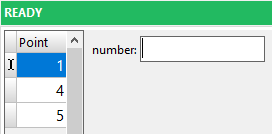
- Highlight focused edit box
Shows blue background in currently edited field
When the function is active When the function is deactive

- Double-click for switching between layers
It is possible to choose double-click or single-click for switching between layers. Single-click is suitable when working in the office, double-click is suitable when working in the field (to prevent unwanted switching).

- Adjust screen for left handed use
By checking this option the control panel is moved from the right side of the screen to the left. If active, you can additionally set the size of buttons and fonts.
Field-map has been moved

- Enable screen lock gesture
The main program window can be easily locked to prevent accidental activation when touched. Lock and unlock the window by quickly dragging the pen/mouse/finger on the top green status bar (in the middle section)

- Adjust screen for high resolution display
If tagged, screen becomes adjusted for finger control - buttons in the map window become enlarged as well as fields to entry data in layer windows or scroll bars. See examples in next chapter...